📌 READ: How to fix the 'Notifications disabled' message! #3

Description

The Error:
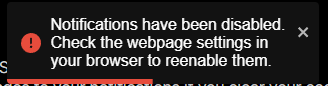
Notifications have been disabled. Check the webpage settings in your browser to reenable them.
Sometimes notifications may be disabled in your browser, and SplatNet Alerts won't be able to ping you because of it. This is a guide on how to fix that message, broken down by browser type.
If you're still having trouble after reading, please create a new issue and I can help you over there.
Safari
💻 Desktop:
TODO
📱Mobile:
iOS Support is now live!
iOS 16.4 enables support for web push, but only for web apps that have been added to the Home Screen. You'll need to press Share > Add to Home Screen to enable this feature.
iOS devices 16.3 or below will either need to update or use a different device.
Chrome
💻 Desktop:
On the website, click on the lock next to the URL, then click Site Settings. Look for the Notifications permission and switch it to either Ask (default) or Allow.
The website's notifications can fail if you either denied the notifications permission popup or if your global settings are changed.
📱Mobile:
Tap the menu (three dots) and go to Settings > Site Settings > Notifications. Make sure the Notifications ('Sites can ask to send notifications') slider is on. (You can always turn it back off after allowing notifications for the site.)
Go to the SplatNet Alerts webpage. Tap the lock icon next to the URL, then tap Permissions. Click Reset permissions and then reload the page.
Edge
💻 Desktop:
On the website, click on the lock next to the URL. Under Permissions, change the Notifications dropdown to either Ask (default) or Allow.
📱 Mobile:
Click on the overflow menu (three dots) and then go to Settings > Privacy and security > Site permissions > Notifications. Make sure the Notifications ('Sites can ask to send notifications') slider is on. (You can always turn it back off after allowing notifications for the site.)
Go back to the SplatNet Alerts webpage. Tap the lock icon next to the URL, then tap Permissions. Click Reset permissions and then reload the page.
Firefox
💻 Desktop:
Click the menu icon (three bars) and go to Settings > Privacy & Security and scroll down to the Permissions section and click on Notifications.
If SplatNet Alerts shows up on the list, change the status from Blocked to Allow. If it's checked, uncheck Block new requests asking to allow notifications. (You can always re-check if after).
Back on the website, click on the settings icon in the URL bar (to the right of the lock). On the Send notifications setting, remove the Blocked (x) tag if it's there and reload the page.
📱 Mobile:
Open the menu (three dots) and go to Settings > Site permissions > Notification and set to Ask to allow.
Back on the SplatNet Alerts website, tap the lock icon next to the URL bar, then tap the Notifications option and toggle it to Allowed.
Brave & other Chromium browsers
💻 Desktop:
Go to Settings > Privacy and Security and turn on Use Google services for push messaging.
The push notification standard requires a server for notification to be sent to, which is then passed to your device when it connects to the internet. For Chrome (and Chromium browsers, like Brave), these servers are operated by Google.
📱 Mobile:
Go to Settings > Site settings > Notifications and turn on the Notifications slider. Return to the website and click the lock next to the URL, then tap Permissions > Notifications which will open the systems notification page. Turn on notifications for the website.