-
Notifications
You must be signed in to change notification settings - Fork 42
Expand file tree
/
Copy path01-quarto.qmd
More file actions
207 lines (125 loc) · 5.84 KB
/
01-quarto.qmd
File metadata and controls
207 lines (125 loc) · 5.84 KB
1
2
3
4
5
6
7
8
9
10
11
12
13
14
15
16
17
18
19
20
21
22
23
24
25
26
27
28
29
30
31
32
33
34
35
36
37
38
39
40
41
42
43
44
45
46
47
48
49
50
51
52
53
54
55
56
57
58
59
60
61
62
63
64
65
66
67
68
69
70
71
72
73
74
75
76
77
78
79
80
81
82
83
84
85
86
87
88
89
90
91
92
93
94
95
96
97
98
99
100
101
102
103
104
105
106
107
108
109
110
111
112
113
114
115
116
117
118
119
120
121
122
123
124
125
126
127
128
129
130
131
132
133
134
135
136
137
138
139
140
141
142
143
144
145
146
147
148
149
150
151
152
153
154
155
156
157
158
159
160
161
162
163
164
165
166
167
168
169
170
171
172
173
174
175
176
177
178
179
180
181
182
183
184
185
186
187
188
189
190
191
192
193
194
195
196
197
198
199
200
201
202
203
204
205
206
207
# Quarto
Your task is to produce a report in PDF that solves the quadratic equations $ax^2+bx+c=0$ for $a=1, b=-1, c=-2$ and shows a plot of the function to confirm the finding.
But after you are done, I will discover I made a mistake and ask you to rewrite the report with $a=1, b=3, c=-2$ (or any number).
Then once you are done, I will like the report so much I will ask you to make an html page displaying the result and showing and explaining the code you used.
We will do all this using R, RStudio, Quarto, and knitr.
## R and RStudio
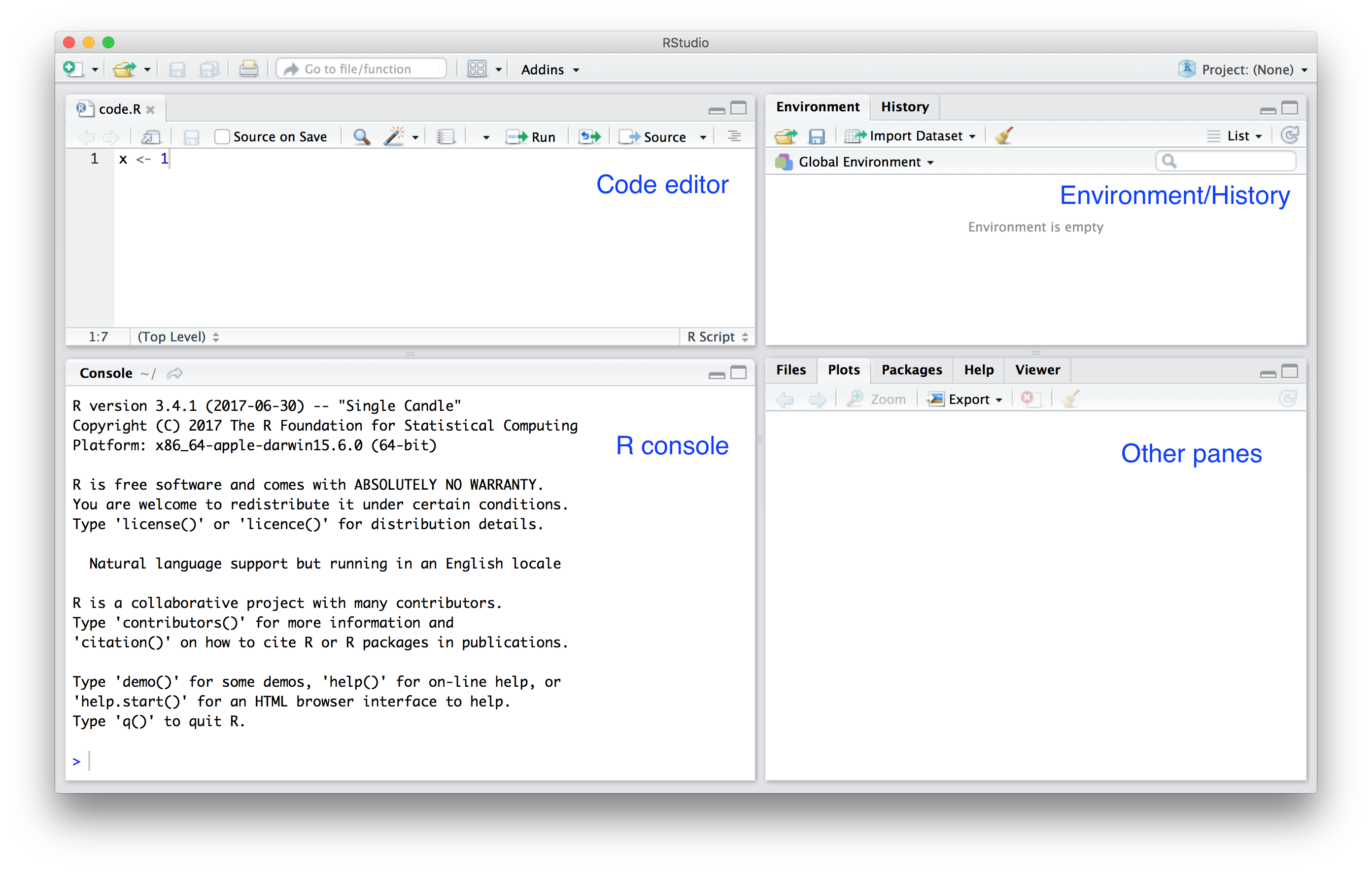
Before introducing Quarto we need R installed. We highly recommend using RStudio as an IDE for this course. We will be using it in lectures.
### Installation
- [Install the latest version (4.3.1) of R](https://cloud.r-project.org/)
- [Install RStudio](https://posit.co/download/rstudio-desktop/)
### Basics
Let's try a few things together:
* Open a new R script file
* Learn tab complete
* Run commands while editing scripts
* Run the entire script
* Make a plot
* Change options to never save workspace.
### Projects
* Start new project in exciting directory.
* Start new project in new directory.
* Change projects.
## Markdown
Start a new Quarto.
### Type of editor
* Source - See the actual code (WYSIWYG).
* Visual - Partial preview of final document.
### The header
At the top you see:
```
---
title: "Untitled"
---
```
The things between the `---` is the *YAML* header.
You will see it used throughout the [Quarto guide](https://quarto.org/docs/guide/).
### Text formating
*italics*, **bold**, ***bold italics***
~strikethrough~
`code`
### Headings
`# Header 1`
`## Header 2`
`### Header 3`
and so on
### Links
Just the link: <https://quarto.org/docs/guide/>
Linked text: [This is the link to Quarto Guide](https://quarto.org/docs/guide/)
### Images
The image can also be a local file.
### Lists
Bullets:
- bullet 1
- sub-bullet 1
- sub-bullet 2
- bullet 2
Ordered list
1. Item 1
2. Item 2
### Equations
Inline: $Y_i = \beta_0 + \beta_1 x_i + \varepsilon_i$
Display math:
$$
\mathbf{Y} = \mathbf{X\beta} + \mathbf{\varepsilon}
$$
## Computations
The main reason we use Quarto is because we can include code and execute the code when compiling the document. In R we refer to them as R chunks.
To add your own R chunks, you can type the characters above quickly with the key binding command-option-I on the Mac and Ctrl-Alt-I on Windows.
This applies to plots as well; the plot will be placed in that position. We can write something like this:
```{r}
x <- 1
y <- 2
x + y
```
By default, the code will show up as well. To avoid having the code show up, you can use an argument, which are annotated with `|#` To avoid showing code in the final document, you can use the argument `echo: FALSE`. For example:
```{r}
#| echo: false
x <- 1
y <- 2
x + y
```
We recommend getting into the habit of adding a label to the R code chunks. This will be very useful when debugging, among other situations. You do this by adding a descriptive word like this:
```{r}
#| label: one-plus-two
x <- 1
y <- 2
x + y
```
### Academic reports
Quarto has many nice features that facilitates publishing academic reports in [this guide](https://quarto.org/docs/authoring/front-matter.html)
### Global execution options
If you want to apply an option globally, you can include in the header, under `execute`. For example adding the following line to the header make code not show up, by default:
```
execute:
echo: false
```
### More on markdown
There is a lot more you can do with R markdown. We highly recommend you continue learning as you gain more experience writing reports in R. There are many free resources on the internet including:
- RStudio's tutorial: <https://quarto.org/docs/get-started/hello/rstudio.html>
- The knitR book: <https://yihui.name/knitr/>
- Pandoc's Markdown [in-depth documentation](https://pandoc.org/MANUAL.html#pandocs-markdown)
## knitR {#sec-knitr}
We use the **knitR** package to compile Quarto. The specific function used to compile is the `knit` function, which takes a file name as input. RStudio provides the **Render** button that makes it easier to compile the document.
Note that the first time you click on the *Render* button, a dialog box may appear asking you to install packages you need. Once you have installed the packages, clicking *Render* will compile your Quarto file and the resulting document will pop up.
This particular example produces an html document which you can see in your working directory. To view it, open a terminal and list the files. You can open the file in a browser and use this to present your analysis. You can also produce a PDF or Microsoft document by changing:
`format: html` to `format: pdf` or `format: docx`. We can also produce documents that render on GitHub using `format: gfm`, which stands for GitHub flavored markdown, a convenient way to share your reports.
## Exercises
(@) Write a Quarto document that defines variables $a=1, b=-1, c=-2$
and print out the solutions to $f(x) = ax^2+bx+c=0$. Do not report complex solutions, only real numbers.
(@) Include a graph of $f(x)$ versus $x$ for $x \in (-5,5)$.
This is how you make a plot of a quadratic function:
```{r}
a <- 1
b <- -1
c <- -2
x <- seq(-5, 5, length = 300)
plot(x, a*x^2 + b*x + c, type = "l")
abline(h = 0, lty = 2)
```
(@) Generate a PDF report using knitr. Do not show the R code, only the solutions and explanations of what the reader is seeing.
(@) Erase the PDF report and reproduce it but this time using $a=1, b=2, c=5$.
(@) Erase the PDF report and reproduce it but this time using $a=1, b=3, c=2$.
(@) Create an HTML page with the results for this last set of values, but this time showing the code.