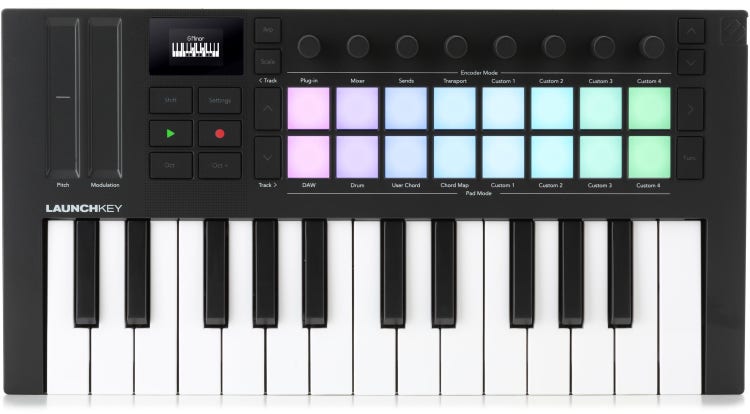
LaunchkeyDD is a modification of the Launchkey MK4 and Launchkey Mini MK4 MIDI Remote Scripts for Ableton Live. Huge shoutout to mihasm for decompiling, reconstructing and patching the source code.
- Improved skin in session view playing clips blink in their own color instead of turning green.
- Device lock and bypass buttons (func + encoder buttons).
- Shift + encoder buttons now navigates single tracks in transport mode and pages in mixer/send modes.
- Navigate by pages instead of one row one track at a time in session view.
- Added clip copy and clip delete in session view (function and function+scene).
- In session view: Scene button shows track select and clip stop; scene + func shows mute and solo.
- Scene + pad up and down buttons triggers scenes.
- Step Seequencer now includes loop selector (scene button) and resolution selector (hold scene and press function). Copy and delete work in this mode too.
- Step settings (encoders) now carry on to new steps.
- Remapped transport combinations in Launchkey Mini versions to include Undo, Redo, Metronomo, Cycle, Retrospective Record and Pause.
- Added mute, solo and delete functions to drum mode.
-
- Many more mappings.
Place both folders (Launchkey_MK4_DD and Launchkey_Mini_MK4_DD) inside your User Library/MIDI Remote Scripts folder. Set up as a control surface following the same instructions as the original scripts.

The following is a list of the assigned mappings in detail
These controls are globally available to manage playback and recording status.
| Function | Control / Combination |
|---|---|
| Play / Stop (Toggle) | Play Button |
| Continue / Pause | Play Button + Pad Function (Hold) |
| Record | Record Button |
| Capture MIDI | Record Button + Pad Function (Hold) |
| Metronome | Record Button + Scene Launch (Hold) |
| Loop (Cycle) | Play Button + Scene Launch (Hold) |
| Undo | Play Button + Shift (Hold) |
| Redo | Record Button + Shift (Hold) |
Encoder behavior changes based on the selected Encoder Mode.
Controls track volume and panning.
- Switch between Volume and Pan:
- Volume: Encoder Up Button (Top arrow next to encoders).
- Pan: Encoder Down Button (Bottom arrow next to encoders).
- Session Navigation:
- Scroll Left/Right in Session: Encoder Up / Encoder Down + Shift (Hold).
Controls parameters of the currently selected device.
- Parameter Control: Knobs 1-8.
- Bank Navigation (Parameter Pages): Encoder Up / Encoder Down Buttons.
- Device Navigation (Select Prev/Next Device): Encoder Up / Encoder Down + Shift (Hold).
- Device On/Off: Encoder Up + Pad Function (Hold).
- Device Lock: Encoder Down + Pad Function (Hold).
Controls send levels (A, B, C...).
- Send Levels: Knobs 1-8.
- Change Send (A, B, C...): Encoder Up / Encoder Down Buttons.
** Session Navigation:- Scroll Left/Right in Session: Encoder Up / Encoder Down + Shift (Hold).
| Encoder # | Function |
|---|---|
| Encoder 1 | Arrangement Position |
| Encoder 2 | Horizontal Zoom |
| Encoder 3 | Vertical Zoom |
| Encoder 4 | Loop Start |
| Encoder 5 | Loop Length |
| Encoder 6 | Cue Point |
| Encoder 8 | Tempo (Coarse) |
- Buttons in Transport Mode:
- Set Cue: Encoder Up Button.
- Quantize Recording: Encoder Down + Pad Function (Hold).
- Tap Tempo: Encoder Up + Pad Function (Hold).
- Select Prev/Next Track: Encoder Up / Encoder Down + Shift (Hold).
- Quantize Sequencer: Encoder Down Button.
Active when the Drum Pad Mode is selected.
- Play: Pad Matrix (Drum Pads).
- Scroll (Octave/Page Up/Down): Pad Up / Pad Down Buttons.
- Solo (Solo Pad): Scene Launch (Hold) + Pad.
- Mute (Mute Pad): Pad Function (Hold) + Pad.
- Quantize (Quantize Pad): Pad Up + Pad Function (Hold).
- Delete: Scene Launch + Pad Function (Hold).
- Launch Clips: Main Pads.
- Launch Scenes: Pad Up and Pad Down + Scene Launch (Hold).
- Navigation:
- Page Up/Down: Pad Up / Pad Down Buttons.
- Left/Right: Track Left / Track Right Buttons.
- Up/Down (Single Row): Pad Up / Pad Down + Pad Function (Hold).
- Clip Management:
- Delete Clip: Pad Function (Hold) + Pad.
- Copy Clip: Scene Launch + Pad Function (Hold).
Accessible temporarily or by cycling modes.
- Stop Clips:
- Activate: Scene Launch Button (Cycle to this mode).
- Upper Pads: Track Selection.
- Lower Pads: Stop Clip for the track.
- Mute/Solo:
- Activate: Pad Function + Scene Launch (Hold).
- Upper Pads: Mute Track.
- Lower Pads: Solo Track.
- Steps: Main Pads
- Sequencer Pages:
- Previous Page: Pad Up Button.
- Next Page: Pad Down Button.
- Note Editing:
- Copy Note: Pad Function (Hold) + Step.
- Double Loop: Pad Down + Pad Function (Hold).
- Quantize: Pad Up + Pad Function (Hold).
- Loop Length:
- Accessible by cycling with Scene Launch.
- Select Length: Main Pads.
- Delete Loop: Scene Launch + Pad Function (Hold).
- Copy Loop: Pad Function Button.
- Resolution (Grid):
- Accessible by cycling with Scene Launch + Pad Function (Hold).
- Select Resolution: Lower Pads.
By holding down an active pad (step) in the sequencer:
- Encoders: Control parameters of the selected step (Velocity, Length, Nudge, etc.).
These settings are saved for the next added steps.