One of:
- Install the Phoscon app on your machine or another machine on the network and pair your switches, buttons, lights and outlets
- Download the COGS plugin from Releases
- Unzip into the
pluginsfolder in your COGS project - In the plugin you have copied, edit
cogs-plugin-manifest.jsonfollowing the examples already there and set:- Any lights/outlets you have add in Phoscon to
"state"with the exact same"name". - Any button/switches you have add in Phoscon to the
"toCogs"section of"events"with the exact same"name".- Buttons should have a value of
{ "type": "option", "options": [ "On Pressed", "On Long Pressed" ] } - On/Off switches should have a value of
{ "type": "option", "options": [ "On Pressed", "Off Pressed", "On Long Pressed", "Off Long Pressed"] }
- Buttons should have a value of
- Any lights/outlets you have add in Phoscon to
- In COGS, open the project and go to
Setup>Settingsand enabledeCONZ - Find the IP address of the machine where you installed Phoscon and get an API key by following the deCONZ REST API Getting started guide
- Add the Phoscon machine's IP address and your deCONZ API key in the plugin settings
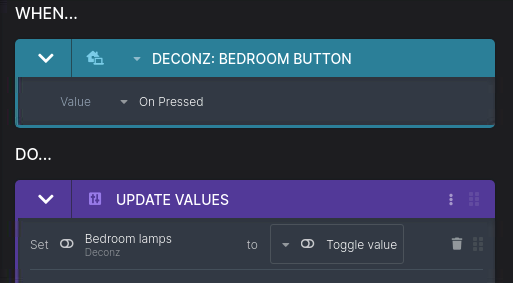
- To trigger a behaviour from a button select
deCONZ: My buttonas the "When" and select the event type - To change an outlet/light state add an
Update valuesaction to your behaviour and set it toTrueto turn on orFalseto turn off