-
clone this repository:
git clone https://github.com/codeshoel/audio-overlay.git -
Create a virtual environment:
python -m venv <venv_name> -
Activate the virtual environment:
- Windows:
<venv_name>\Scripts\activate - Run this command to upgrade pip utilite:
python -m pip install --upgrade pip
- Windows:
-
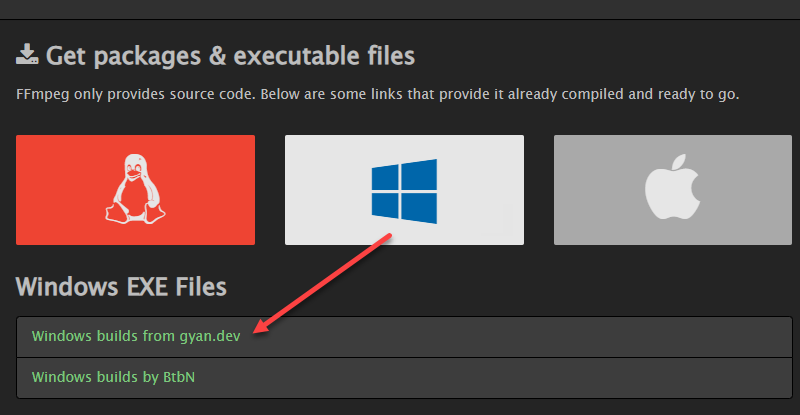
Download FFmpeg for Windows from: FFmpeg download page
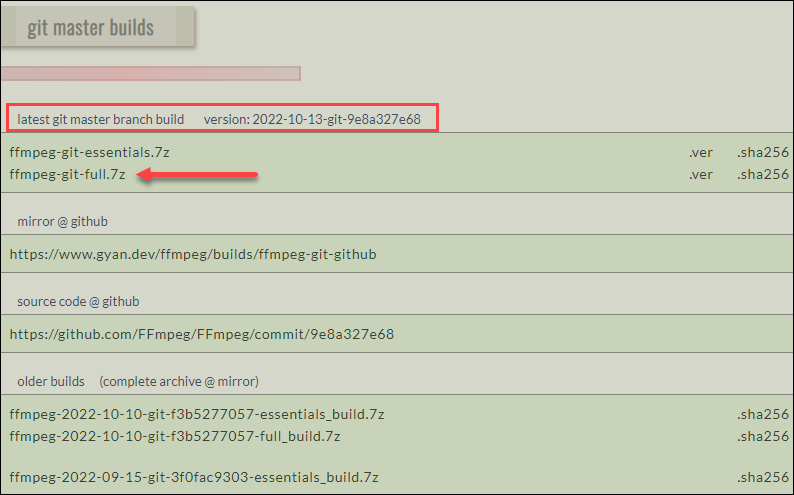
- In the git master builds section, search for the latest version of the FFmpeg build and download the full build beacause it has the up-to-date libraries.
-
Extract the downloaded file using any file unziper utilite e.g
WinRaR, 7-Zip. -
Open the extracted folder and rename the child folder within the parent.
- Move or copy the child folder to the root of the C drive or the folder of your choice.
-
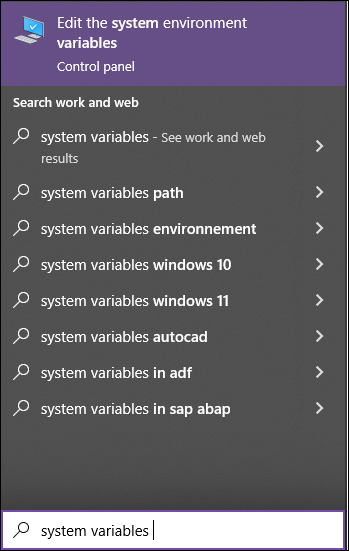
Type system variables into the search bar and click the Edit the system environment variables option.
-
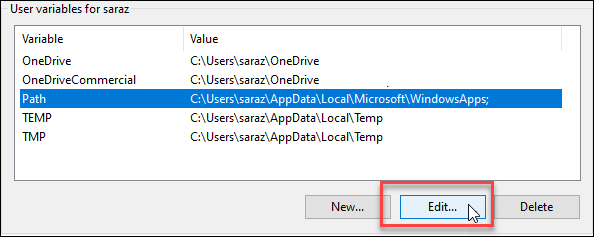
Under the User variables section, select Path and click the Edit button.
-
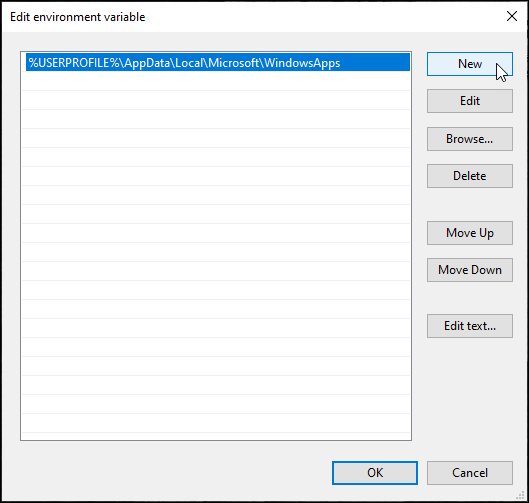
Click on New from the side menu.
-
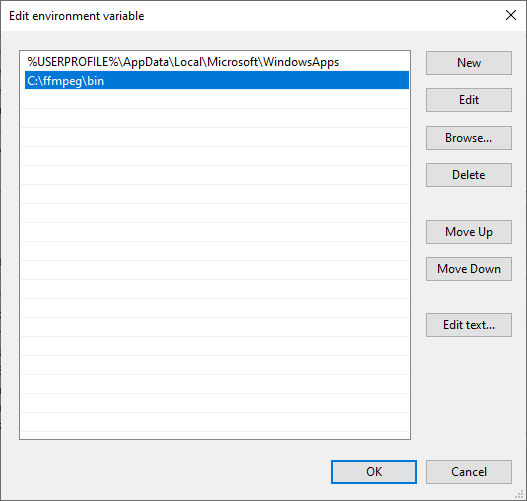
Add C:\ffmpeg\bin to the empty field and confirm changes with OK
-
To verify FFmpeg Installation, use any among the commands below
- Run:
ffmpegORffmpeg -version
- Run:



-
Various folders and their purpose:
- files: all audio track(mp3) to be converted should be placed within the
filesdirectory. - initial_files: Durring the covertion the original audio files that are converted successfully will be moved to the
initial_filesdirectory. - error_files: Durring the convertion all unconverted audio files will be moved to the
error_filesdirectory.
- files: all audio track(mp3) to be converted should be placed within the
-
If everything went successfully copy the audio files you wish to merge(overlay) into the
filesdirectory and runmain.pyon the terminal where your virtual environment is activated:py main.py