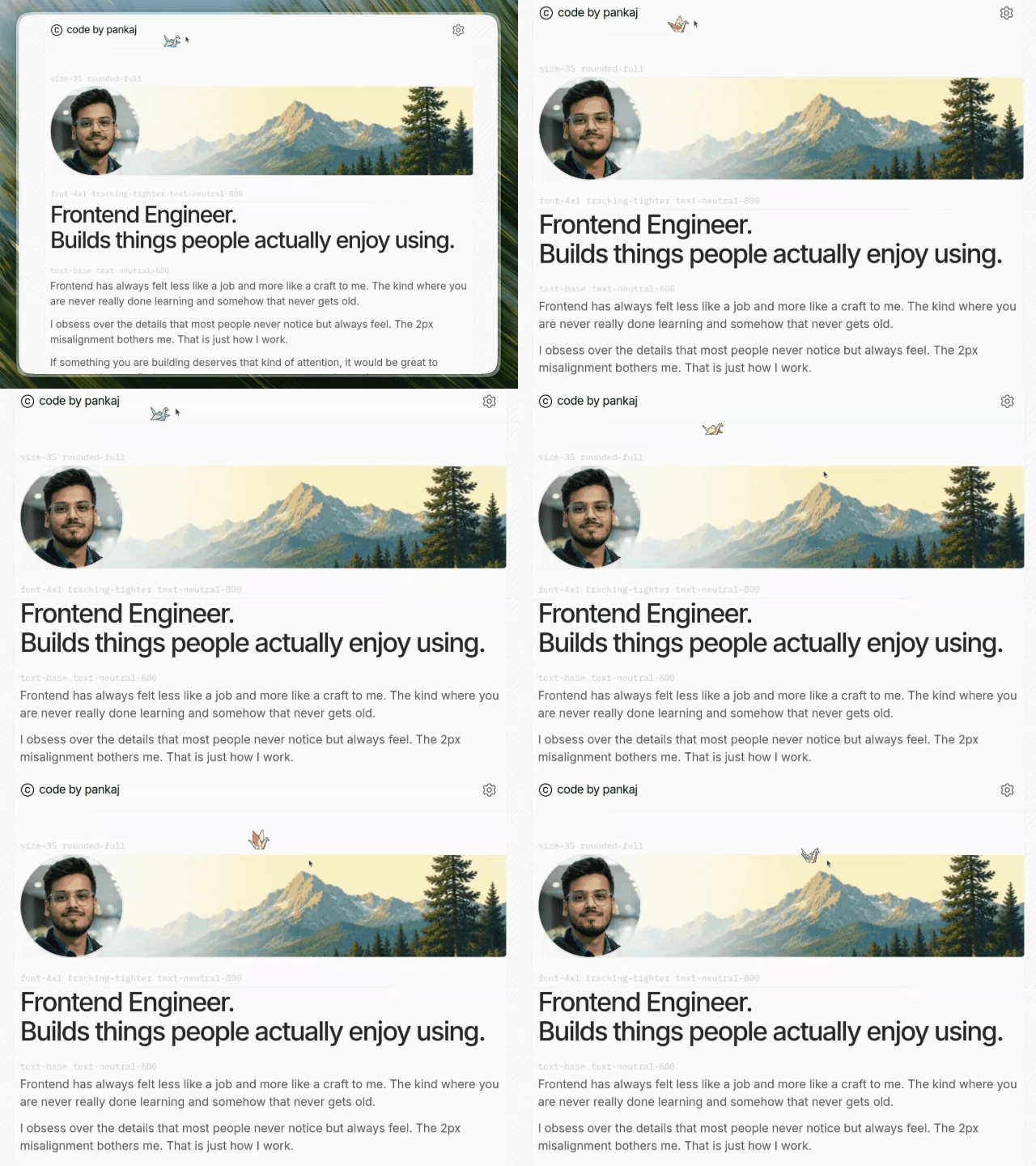
Animated pixel companions that follow your cursor.
npm install cursor-petpnpm add cursor-petyarn add cursor-pet"use client";
import CursorPet from "cursor-pet";
export default function App() {
return <CursorPet spriteImage="/ufo.png" />;
}- Pixel-perfect sprite animation
- Smooth cursor-following movement
- Idle + movement animation states
- Programmatic enable/disable support
- Custom sprite sheet support
- Lightweight
- Dependency-free
- React + TypeScript support
- Customizable keyboard toggle shortcut
- Works with any pixel character, creature, vehicle, or object
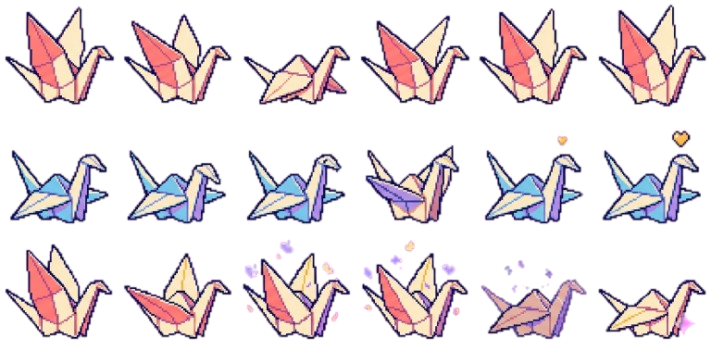
Included demo sprite sheets you can download and use directly.
Preview:
Downloads:


Usage:
<CursorPet spriteImage="/ufo.png" />

<CursorPet spriteImage="/origami-crane.png" />| Prop | Type | Default | Description |
|---|---|---|---|
spriteImage |
string |
required | Sprite sheet image URL |
spriteSize |
number |
32 |
Width and height of each frame |
moveFrames |
readonly SpriteFrame[] |
built-in | Animation frames while moving |
idleFrames |
readonly SpriteFrame[] |
built-in | Animation frames while idle |
speed |
number |
1.6 |
Movement speed |
reactionDelay |
number |
250 |
Delay before chasing the cursor |
stopDistance |
number |
24 |
Distance before stopping near cursor |
homeStopDistance |
number |
4 |
Stop distance when returning home |
toggleKey |
string |
"c" |
Keyboard key used for toggling |
toggleModifier |
"alt" | "ctrl" | "shift" | "meta" |
"alt" |
Modifier key used for toggling |
enabled |
boolean |
true |
Enable or disable the pet |
className |
string |
"" |
Extra class names |
interface SpriteFrame {
  x: number;
  y: number;
  duration: number;
}Control the pet from React state:
"use client";

import { useState } from "react";
import CursorPet from "cursor-pet";

export default function App() {
  const [enabled, setEnabled] = useState(true);

  return (
    <>
      <button onClick={() => setEnabled((v) => !v)}>Toggle Pet</button>

      <CursorPet spriteImage="/ufo.png" enabled={enabled} />
    </>
  );
}
When disabled, the pet returns to its home position.
Default shortcut:
Alt + CCustom shortcut:
<CursorPet spriteImage="/ufo.png" toggleKey="p" toggleModifier="ctrl" />This will use:
Ctrl + PThe keyboard shortcut continues to work even when using the enabled prop.
const moveFrames = [
  { x: 0, y: 0, duration: 100 },
  { x: -32, y: 0, duration: 100 },
];

const idleFrames = [
  { x: 0, y: -32, duration: 200 },
  { x: -32, y: -32, duration: 200 },
];

<CursorPet
  spriteImage="/ufo.png"
  moveFrames={moveFrames}
  idleFrames={idleFrames}
/>;Default built-in animations expect:
- 6 columns
- 3 rows
- Uniform frame sizes
Example layout:
Row 1 → movement frames
Row 2 → idle frames
Row 3 → extra idle framesYou can generate custom sprite sheets using ChatGPT, Gemini, Midjourney, or other AI tools.
Detailed sprite generation prompt:
- Cats
- Dogs
- Ghosts
- Slimes
- Pokémon-style sprites
- Paper planes
- UFOs
- Tiny cars
- Retro game characters
import CursorPet from "cursor-pet";

import type { CursorPetProps, SpriteFrame, ToggleModifier } from "cursor-pet";MIT