Run CUDA applications on AMD GPUs, locally, transparently, and on your terms.
A local-first Windows GUI for launching CUDA applications through ZLUDA, allowing them to run on AMD hardware. There are no external servers, no telemetry, and no hidden configuration. Everything runs as a single, dependency-free PowerShell script.
Disclaimer: This project is not affiliated with, endorsed by, or supported by ZLUDA, AMD, or NVIDIA. It is an independent convenience wrapper around the official
zluda.exelauncher.





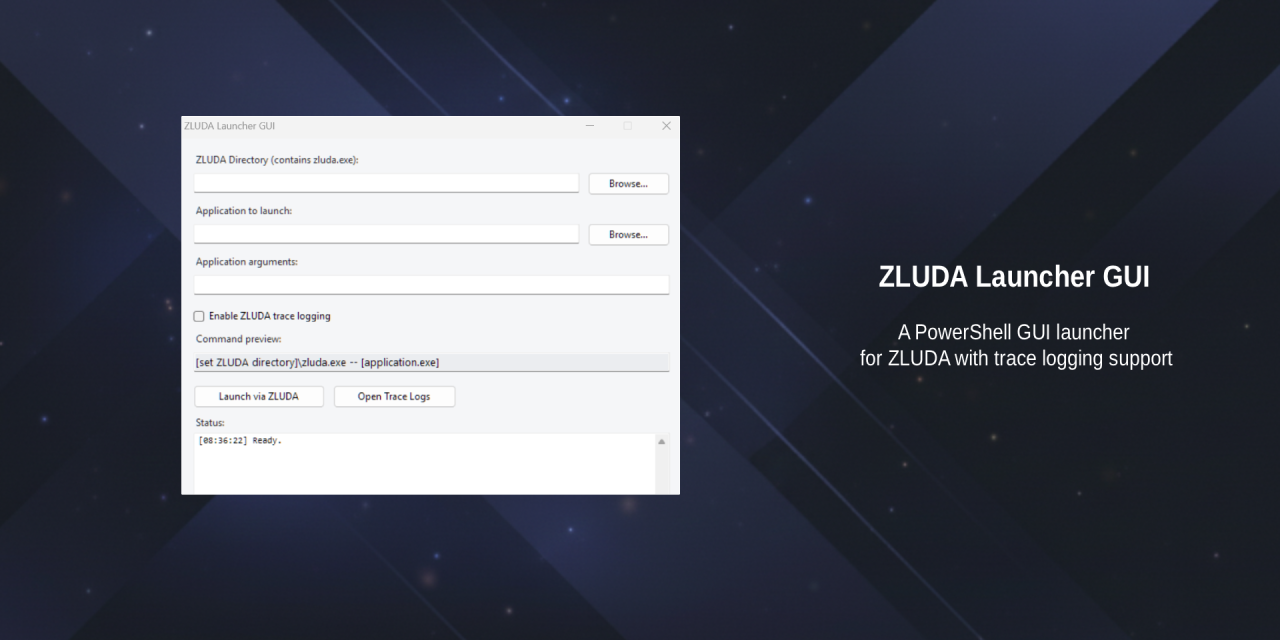
Running CUDA software through ZLUDA on Windows means juggling directory paths, environment variables, and trace flags manually every time. This launcher wraps everything up in a small interface so that you can configure it once and forget about it.
What makes it different:
- 🔒 Privacy-first: Every file it writes (settings and trace logs) lives in a plain folder next to the script. Nothing touches
%TEMP%,%APPDATA%, or the Windows Registry. - 💾 Zero-friction persistence: Set your ZLUDA path and application once, and it is remembered the next time you launch the tool. No reconfiguration is required.
- 👀 Transparent by design: A live command preview shows you exactly what will run before you click Launch. There is no black box.
- 🧹 Clean shutdown: Closing the launcher stops the wrapped process (and any child processes it spawned) instead of leaving orphaned tasks behind.
- 🗑️ Delete to uninstall: There is no installer and no Registry entries. Delete the folder and the launcher is gone.
- Windows with PowerShell 5.1 or later (included with Windows 10 and Windows 11).
- ZLUDA downloaded and extracted somewhere on your system.
- AMD Software: Adrenalin Edition (current GPU driver) and the AMD HIP SDK / ROCm installed.
- A CUDA application built with a toolkit version compatible with your ZLUDA release. See Compatibility Notes.
-
Download the latest release:
- Visit the Release Page.
- Download the
ZLUDA-Launcher-GUI-v1.0.zipfile. - Extract the ZIP file to a permanent location. Do not delete this folder, as it contains the launcher files.
-
Right-click the script and select Run with PowerShell (the script automatically relaunches itself in STA mode if required).
- Click Browse next to ZLUDA Directory and select the folder containing
zluda.exe. - Click Browse next to Application to launch and select the
.exeyou want to run through ZLUDA. - Add any application arguments (optional). Quote arguments that contain spaces.
- Tick Enable ZLUDA trace logging if you want diagnostic output for troubleshooting.
- Click Launch via ZLUDA.
Your settings are saved automatically and reloaded the next time you open the launcher.
None. Everything happens locally in a folder next to the script:
ZLUDA-Launcher-GUI-v1.0\
├── ZLUDA-Launcher-GUI.ps1
├── ZludaLauncherData\
│   └── config.json        ← saved ZLUDA directory, application path, and arguments
└── ZludaTraceLogs\         ← created only if trace logging is enabled
- No external network requests.
- No analytics or telemetry.
- No Registry writes.
- Settings persist only in
config.json, which you can delete or edit manually at any time.
It follows ZLUDA's documented Windows usage exactly:
<ZLUDA_DIRECTORY>\zluda.exe -- <APPLICATION> <APPLICATION_ARGUMENTS>
When trace logging is enabled, the launcher sets the ZLUDA_LOG_DIR environment variable to point to ZludaTraceLogs\ for the launched process. Nothing more.
Yes. It is a single, readable PowerShell script with no external dependencies or compiled binaries. See How It Works below for an overview of the process.
| Requirement | Notes |
|---|---|
| Windows 10 / 11 | PowerShell 5.1 is included by default |
| AMD GPU | Must be on ZLUDA's supported architecture list; check current releases |
| HIP SDK / ROCm | Required; confirm with echo %HIP_PATH% |
| CUDA build toolchain | Only required if you are compiling your own test applications |
I get "CUDA driver version is insufficient for CUDA runtime version." What does that mean?
The CUDA toolkit version used to compile the application does not match what your ZLUDA build supports. This is not something the launcher controls. Check the ZLUDA changelog for the CUDA version range your specific build targets, and recompile the application with a matching nvcc version if necessary.
I get "error C1189: unsupported Visual Studio version" when compiling with nvcc.
Add -allow-unsupported-compiler to your nvcc command. This happens when an older CUDA toolkit does not recognise a newer Visual Studio release.
I get "error STL1002: Unexpected compiler version" when compiling.
Recent MSVC STL headers reject older CUDA toolkits by default. Add -D_ALLOW_COMPILER_AND_STL_VERSION_MISMATCH alongside -allow-unsupported-compiler.
Does this work with brand-new AMD GPUs?
It depends on both AMD's HIP SDK and ZLUDA supporting that GPU architecture. Very recent GPU generations sometimes receive only preview-level support initially. If you are using new hardware and encounter persistent errors, check for a newer ZLUDA build before assuming it is a launcher configuration problem.
How do I switch between multiple installed CUDA toolkit versions?
Multiple CUDA toolkits can coexist on one machine. Either reorder your system PATH so that your preferred version's bin folder comes first, or invoke nvcc.exe using its full path when compiling.
Where are my settings stored, and how do I reset them?
In ZludaLauncherData\config.json, next to the script. Delete the file (or the entire folder) to restore the default settings. Nothing else on your system is affected.
- Not a ZLUDA patch: This is a convenience wrapper around the official
zluda.exe; it cannot work around genuine ZLUDA or hardware compatibility limitations. - Moving target: ZLUDA and AMD compatibility changes between releases. Consult the ZLUDA repository directly for the current supported hardware and CUDA toolkit versions.
- Windows only: Built with Windows Forms. Cross-platform support is not planned.
flowchart TD
Start([Launch Script]) --> STA{STA Thread?}
STA -->|No| Restart[Restart PowerShell in STA Mode]
STA -->|Yes| GUI[Load Windows Forms GUI]
GUI --> Config[Load Local Config]
Config --> Input[Select ZLUDA + Application]
Input --> Validate{Validation}
Validate -->|Fail| Error[Display Error]
Validate -->|Pass| Build[Build ZLUDA Command]
Build --> Env[Configure Environment Variables]
Env --> Trace{Trace Enabled?}
Trace -->|Yes| Logs[Create Trace Directory]
Trace -->|No| Launch
Logs --> Launch[Start zluda.exe]
Launch --> Monitor[Monitor Process]
Monitor --> Exit([Application Exit])
Exit --> Save[Save Configuration]
The script is a single, readable PowerShell file with no external dependencies or compiled binaries. Feel free to open it directly and read through it.
This software is provided "as is", without warranty of any kind. It is an independent tool and is not affiliated with ZLUDA, AMD, or NVIDIA. The authors are not responsible for hardware compatibility issues, data loss, or any other consequences arising from the use of this tool.
This project is licensed under the MIT Licence. See the LICENSE file for details.
Built as a convenience layer on top of:
- ZLUDA by vosen: the CUDA-on-AMD compatibility layer that makes this possible.