

To understand what Craft Agents does and how it works watch this video.
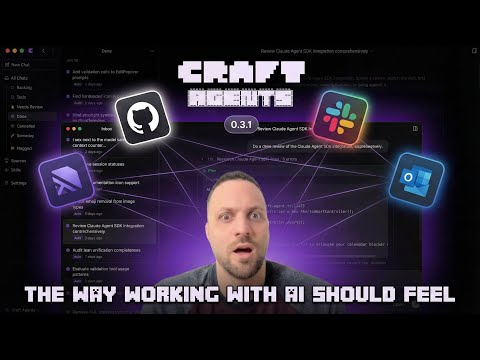
Click Here (or on the image above) to watch the video on YouTube →
Craft Agents is a tool we built so that we (at craft.do) can work effectively with agents. It enables intuitive multitasking, no-fluff connection to any API or Service, sharing sessions, and a more document (vs code) centric workflow - in a beautiful and fluid UI.
It uses the Claude Agent SDK and the Pi SDK side by side—building on what we found great and improving areas where we've desired improvements.
It's built with Agent Native software principles in mind, and is highly customisable out of the box. One of the first of its kind.
Craft Agents is open source under the Apache 2.0 license - so you are free to remix, change anything. And that's actually possible. We ourselves are building Craft Agents with Craft Agents only - no code editors - so really, any customisation is just a prompt away.
We built Craft Agents because we wanted a better, more opinionated (and preferably non-CLI way) of working with the most powerful agents in the world. We'll continue to improve it, based on our experiences and intuition.

How do I connect to Linear, Gmail, Slack...? Tell the agent "add Linear as a source." It finds public APIs and MCP servers, reads their docs, sets up credentials, and configures everything. No config files, no setup wizards.
Check out how I just connected to Slack →
I already have my MCP config JSON. Paste it. The agent handles the rest.
What about local MCPs? Fully supported. Stdio-based MCP servers run as local subprocesses on your machine. Point it at an npx command, a Python script, or any local binary. It just works.
Can it handle custom APIs? Yes. Paste an OpenAPI spec, some endpoint URLs, screenshots of docs, whatever you have. It figures it out and guides you through the rest.
APIs too? Not just MCPs? Craft Agents connects to anything. We have it hooked up to a direct Postgres DB behind a jumpbox. Skills + Sources = magic.
How do I import my Claude Code skills and MCPs? Tell the agent you want to import your skills from Claude Code. It handles the migration.
Here I imported all my skills in one go →
How do I create a new skill? Describe what the skill should do, give it context. The agent takes care of the rest.
Do I need to restart after changes?
No. Everything is instant. Mention new skills or sources with @, even mid-conversation.
So I can just ask it anything? Yes. That's the core idea behind agent-native software. You describe what you want, and it figures out how. That's a good use of tokens.
macOS / Linux:
curl -fsSL https://agents.craft.do/install-app.sh | bashWindows (PowerShell):
irm https://agents.craft.do/install-app.ps1 | iexgit clone https://github.com/lukilabs/craft-agents-oss.git
cd craft-agents-oss
bun install
bun run electron:start- Multi-Session Inbox: Desktop app with session management, status workflow, and flagging
- Claude Code Experience: Streaming responses, tool visualization, real-time updates
- Multiple LLM Connections: Add multiple AI providers and set per-workspace defaults
- Multi-Provider Support: Run sessions with Google AI Studio, ChatGPT Plus, GitHub Copilot, or OpenAI API keys alongside Anthropic
- Craft MCP Integration: Access to 32+ Craft document tools (blocks, collections, search, tasks)
- Sources: Connect to MCP servers, REST APIs (Google, Slack, Microsoft), and local filesystems
- Permission Modes: Three-level system (Explore, Ask to Edit, Auto) with customizable rules
- Background Tasks: Run long-running operations with progress tracking
- Dynamic Status System: Customizable session workflow states (Todo, In Progress, Done, etc.)
- Theme System: Cascading themes at app and workspace levels
- Multi-File Diff: VS Code-style window for viewing all file changes in a turn
- Skills: Specialized agent instructions stored per-workspace
- File Attachments: Drag-drop images, PDFs, Office documents with auto-conversion
- Automations: Event-driven automation — create agent sessions on label changes, schedules, tool use, and more
- Launch the app after installation
- Choose API Connection: Use Anthropic (API key or Claude Max), Google AI Studio, ChatGPT Plus (Codex OAuth), or GitHub Copilot OAuth
- Create a workspace: Set up a workspace to organize your sessions
- Connect sources (optional): Add MCP servers, REST APIs, or local filesystems
- Start chatting: Create sessions and interact with Claude
- Inbox/Archive: Sessions organized by workflow status
- Flagging: Mark important sessions for quick access
- Status Workflow: Todo → In Progress → Needs Review → Done
- Session Naming: AI-generated titles or manual naming
- Session Persistence: Full conversation history saved to disk
Connect external data sources to your workspace:
| Type | Examples |
|---|---|
| MCP Servers | Craft, Linear, GitHub, Notion, custom servers |
| REST APIs | Google (Gmail, Calendar, Drive), Slack, Microsoft |
| Local Files | Filesystem, Obsidian vaults, Git repos |
| Mode | Display | Behavior |
|---|---|---|
safe |
Explore | Read-only, blocks all write operations |
ask |
Ask to Edit | Prompts for approval (default) |
allow-all |
Auto | Auto-approves all commands |
Use SHIFT+TAB to cycle through modes in the chat interface.
| Shortcut | Action |
|---|---|
Cmd+N |
New chat |
Cmd+1/2/3 |
Focus sidebar/list/chat |
Cmd+/ |
Keyboard shortcuts dialog |
SHIFT+TAB |
Cycle permission modes |
Enter |
Send message |
Shift+Enter |
New line |
Craft Agents can run as a headless server on a remote machine (e.g., a Linux VPS), with the desktop app connecting as a thin client. This lets you keep long-running sessions alive, access them from multiple machines, and run compute-heavy tasks on a powerful server.
From the monorepo root:
# Generate a token and start the server
CRAFT_SERVER_TOKEN=$(openssl rand -hex 32) bun run packages/server/src/index.ts
The server prints the connection details on startup:
CRAFT_SERVER_URL=ws://203.0.113.5:9100
CRAFT_SERVER_TOKEN=<generated-token>
Copy these values and use them to connect the desktop app.
Launch the Electron app in thin-client mode by passing the server URL and token:
CRAFT_SERVER_URL=wss://203.0.113.5:9100 CRAFT_SERVER_TOKEN=<token> bun run electron:startIn thin-client mode, the desktop app renders the UI but all session logic, tool execution, and LLM calls run on the remote server.
| Variable | Required | Default | Description |
|---|---|---|---|
CRAFT_SERVER_TOKEN |
Yes | — | Bearer token for client authentication |
CRAFT_RPC_HOST |
No | 127.0.0.1 |
Bind address (0.0.0.0 for remote access) |
CRAFT_RPC_PORT |
No | 9100 |
Bind port |
CRAFT_RPC_TLS_CERT |
No | — | Path to PEM certificate file (enables wss://) |
CRAFT_RPC_TLS_KEY |
No | — | Path to PEM private key file (required with cert) |
CRAFT_RPC_TLS_CA |
No | — | Path to PEM CA chain file (optional, for client cert verification) |
CRAFT_DEBUG |
No | false |
Enable debug logging |
When exposing the server over the network, TLS encrypts the WebSocket connection (wss:// instead of ws://).
Generate a self-signed certificate (development/testing):
./scripts/generate-dev-cert.sh
# Creates certs/cert.pem and certs/key.pem (valid 365 days)
Start the server with TLS:
CRAFT_SERVER_TOKEN=<token> \
CRAFT_RPC_HOST=0.0.0.0 \
CRAFT_RPC_TLS_CERT=certs/cert.pem \
CRAFT_RPC_TLS_KEY=certs/key.pem \
bun run packages/server/src/index.ts
The server will print CRAFT_SERVER_URL=wss://<your-public-ip>:9100.
For production, use certificates from a trusted CA (e.g., Let's Encrypt) or place the server behind a reverse proxy (nginx, Caddy) that terminates TLS.
docker run -d \
  -p 9100:9100 \
  -e CRAFT_SERVER_TOKEN=<token> \
  -e CRAFT_RPC_HOST=0.0.0.0 \
  -v craft-data:/root/.craft-agent \
  craft-agents-server
To enable TLS in Docker, mount your certificates and set the env vars:
docker run -d \
  -p 9100:9100 \
  -e CRAFT_SERVER_TOKEN=<token> \
  -e CRAFT_RPC_HOST=0.0.0.0 \
  -e CRAFT_RPC_TLS_CERT=/certs/cert.pem \
  -e CRAFT_RPC_TLS_KEY=/certs/key.pem \
  -v ./certs:/certs:ro \
  -v craft-data:/root/.craft-agent \
craft-agents-serverA terminal client that connects to a running Craft Agent server over WebSocket (ws:// or wss://). Use it for scripting, CI/CD pipelines, server validation, or when you prefer the command line.
# From the monorepo (requires Bun)
bun run apps/cli/src/index.ts --help

# Or add to your PATH
alias craft-cli="bun run $(pwd)/apps/cli/src/index.ts"The CLI reads connection details from flags or environment variables:
# Via environment (set once)
export CRAFT_SERVER_URL=ws://127.0.0.1:9100
export CRAFT_SERVER_TOKEN=<your-token>

# Or via flags
craft-cli --url ws://127.0.0.1:9100 --token <token> ping
For TLS connections (wss://), use --tls-ca <path> for self-signed certificates.
| Command | Description |
|---|---|
ping |
Verify connectivity (clientId + latency) |
health |
Check credential store health |
versions |
Show server runtime versions |
workspaces |
List workspaces |
sessions |
List sessions in workspace |
connections |
List LLM connections |
sources |
List configured sources |
session create |
Create a session (--name, --mode) |
session messages <id> |
Print session message history |
session delete <id> |
Delete a session |
send <id> <message> |
Send message and stream AI response |
cancel <id> |
Cancel in-progress processing |
invoke <channel> [args] |
Raw RPC call with JSON args |
listen <channel> |
Subscribe to push events (Ctrl+C to stop) |
run <prompt> |
Self-contained: spawn server, run prompt, stream response, exit |
--validate-server |
21-step integration test (auto-spawns server if no --url) |
| Flag | Default | Description |
|---|---|---|
--workspace-dir <path> |
— | Register a workspace directory before running |
--source <slug> |
— | Enable a source (repeatable) |
--output-format <fmt> |
text |
Output format: text or stream-json |
--mode <mode> |
allow-all |
Permission mode for the session |
--no-cleanup |
false |
Skip session deletion on exit |
--server-entry <path> |
— | Custom server entry point |
--provider <name> |
anthropic |
LLM provider (anthropic, openai, google, openrouter, groq, mistral, xai, etc.) |
--model <id> |
(provider default) | Model ID (e.g., claude-sonnet-4-5-20250929, gpt-4o, gemini-2.0-flash) |
--api-key <key> |
— | API key (or $LLM_API_KEY, or provider-specific env var) |
--base-url <url> |
— | Custom API endpoint for proxies or self-hosted models |
The run command is fully self-contained — it spawns a headless server, creates a session, sends the prompt, streams the response, and exits. No separate server setup needed. An API key is resolved from --api-key, $LLM_API_KEY, or a provider-specific env var (e.g., $ANTHROPIC_API_KEY, $OPENAI_API_KEY).
# Quick connectivity check
craft-cli ping

# List sessions (human-readable)
craft-cli sessions

# Send a message and stream the AI response
craft-cli send abc-123 "What files are in the current directory?"

# Pipe input
echo "Summarize this" | craft-cli send abc-123

# JSON output for scripting
craft-cli --json workspaces | jq '.[].name'

# Self-contained run (spawns its own server)
craft-cli run "Summarize the README"
craft-cli run --workspace-dir ./my-project --source github "List open PRs"

# Multi-provider support
craft-cli run --provider openai --model gpt-4o "Summarize this repo"
GOOGLE_API_KEY=... craft-cli run --provider google --model gemini-2.0-flash "Hello"
craft-cli run --provider anthropic --base-url https://openrouter.ai/api/v1 --api-key $OR_KEY "Hello"

# Validate the server (auto-spawns if no --url)
craft-cli --validate-server
craft-cli --validate-server --url ws://127.0.0.1:9100 --token <token>craft-agent/
├── apps/
│ ├── cli/ # Terminal client (CLI)
│ └── electron/ # Desktop GUI (primary)
│ └── src/
│ ├── main/ # Electron main process
│ ├── preload/ # Context bridge
│ └── renderer/ # React UI (Vite + shadcn)
└── packages/
├── core/ # Shared types
└── shared/ # Business logic
└── src/
├── agent/ # CraftAgent, permissions
├── auth/ # OAuth, tokens
├── config/ # Storage, preferences, themes
├── credentials/ # AES-256-GCM encrypted storage
├── sessions/ # Session persistence
├── sources/ # MCP, API, local sources
└── statuses/ # Dynamic status system
# Hot reload development
bun run electron:dev

# Build and run
bun run electron:start

# Type checking
bun run typecheck:all

# Debug logging (writes to ~/Library/Logs/@craft-agent/electron/)
# Logs are automatically enabled in developmentOAuth integrations (Slack, Microsoft) require credentials baked into the build. Create a .env file:
MICROSOFT_OAUTH_CLIENT_ID=your-client-id
SLACK_OAUTH_CLIENT_ID=your-slack-client-id
SLACK_OAUTH_CLIENT_SECRET=your-slack-client-secret
Note: Google OAuth credentials are NOT baked into the build. Users provide their own credentials via source configuration. See the Google OAuth Setup section below.
Google integrations require you to create your own OAuth credentials. This is a one-time setup.
- Go to Google Cloud Console
- Create a new project (or select an existing one)
- Note your Project ID
Go to APIs & Services → Library and enable the APIs you need:
- Gmail API - for email integration
- Google Calendar API - for calendar integration
- Google Drive API - for file storage integration
- Go to APIs & Services → OAuth consent screen
- Select External user type (unless you have Google Workspace)
- Fill in required fields:
- App name: e.g., "My Craft Agent"
- User support email: your email
- Developer contact: your email
- Add scopes (optional - can leave default)
- Add yourself as a test user (required for External apps in testing mode)
- Complete the wizard
- Go to APIs & Services → Credentials
- Click Create Credentials → OAuth Client ID
- Application type: Desktop app
- Name: e.g., "Craft Agent Desktop"
- Click Create
- Note the Client ID and Client Secret
When setting up a Google source (Gmail, Calendar, Drive), add these fields to your source's config.json:
{
  "api": {
    "googleService": "gmail",
    "googleOAuthClientId": "your-client-id.apps.googleusercontent.com",
    "googleOAuthClientSecret": "your-client-secret"
  }
}
Or simply tell the agent you want to connect Gmail/Calendar/Drive - it will guide you through entering your credentials.
- Your OAuth credentials are stored encrypted alongside other source credentials
- Never commit credentials to version control
- For production use, consider getting your OAuth consent screen verified by Google
Craft Agents supports multiple ways to connect to LLM providers:
| Provider | Auth | Notes |
|---|---|---|
| Anthropic | API key or Claude Max/Pro OAuth | Direct Claude connection via the Claude Agent SDK |
| Google AI Studio | API key | Gemini models with native Google Search grounding built in |
| ChatGPT Plus / Pro | Codex OAuth | Sign in with your ChatGPT subscription — uses OpenAI's Codex models |
| GitHub Copilot | OAuth (device code) | One-click authentication with your Copilot subscription |
Additional providers are supported through the Claude / Anthropic API Key connection by choosing a custom endpoint:
| Provider | Endpoint | Notes |
|---|---|---|
| OpenRouter | https://openrouter.ai/api |
Access Claude, GPT, Llama, Gemini, and hundreds of other models through a single API key. Use provider/model-name format (e.g. anthropic/claude-opus-4.6). |
| Vercel AI Gateway | https://ai-gateway.vercel.sh |
Route requests through Vercel's AI Gateway with built-in observability and caching. |
| Ollama | http://localhost:11434 |
Run open-source models locally. No API key required. |
| Custom | Any URL | Any OpenAI-compatible or Anthropic-compatible endpoint. |
Craft Agents uses two agent backends:
- Claude — powered by the Claude Agent SDK, which natively supports custom base URLs and provider routing. Anthropic API key, Claude Max/Pro OAuth, and all third-party endpoints use this backend.
- Pi — powered by the Pi SDK, which handles Google AI Studio, ChatGPT Plus (Codex OAuth), GitHub Copilot OAuth, and OpenAI API key connections. Pi connections route through their own provider infrastructure.
Configuration is stored at ~/.craft-agent/:
~/.craft-agent/
├── config.json              # Main config (workspaces, LLM connections)
├── credentials.enc          # Encrypted credentials (AES-256-GCM)
├── preferences.json         # User preferences
├── theme.json               # App-level theme
└── workspaces/
    └── {id}/
        ├── config.json      # Workspace settings
        ├── theme.json       # Workspace theme override
        ├── automations.json  # Event-driven automations
        ├── sessions/        # Session data (JSONL)
        ├── sources/         # Connected sources
        ├── skills/          # Custom skills
        └── statuses/        # Status configuration
Automations let you automate workflows by triggering actions when events happen — labels change, sessions start, tools run, or on a cron schedule.
Just ask the agent:
- "Set up a daily standup briefing every weekday at 9am"
- "Notify me when a session is labelled urgent"
- "Track permission mode changes and summarise them"
- "Every Friday at 5pm, summarise this week's completed tasks"
Or configure manually in ~/.craft-agent/workspaces/{id}/automations.json:
{
  "version": 2,
  "automations": {
    "SchedulerTick": [
      {
        "cron": "0 9 * * 1-5",
        "timezone": "America/New_York",
        "labels": ["Scheduled"],
        "actions": [
          { "type": "prompt", "prompt": "Check @github for new issues assigned to me" }
        ]
      }
    ],
    "LabelAdd": [
      {
        "matcher": "^urgent$",
        "actions": [
          { "type": "prompt", "prompt": "An urgent label was added. Triage the session and summarise what needs attention." }
        ]
      }
    ]
  }
}
Prompt actions create a new agent session with a prompt. They support @mentions for sources and skills, and environment variables like $CRAFT_LABEL and $CRAFT_SESSION_ID are expanded automatically.
Supported events: LabelAdd, LabelRemove, PermissionModeChange, FlagChange, SessionStatusChange, SchedulerTick, PreToolUse, PostToolUse, SessionStart, SessionEnd, and more.
See the Automations documentation for the full reference.
Tool responses exceeding ~60KB are automatically summarized using Claude Haiku with intent-aware context. The _intent field is injected into MCP tool schemas to preserve summarization focus.
External apps can navigate using craftagents:// URLs:
craftagents://allSessions                      # All sessions view
craftagents://allSessions/session/session123   # Specific session
craftagents://settings                         # Settings
craftagents://sources/source/github            # Source info
craftagents://action/new-chat                  # Create new session
| Layer | Technology |
|---|---|
| Runtime | Bun |
| AI | @anthropic-ai/claude-agent-sdk |
| AI (Pi) | Pi SDK agent server |
| Desktop | Electron + React |
| UI | shadcn/ui + Tailwind CSS v4 |
| Build | esbuild (main) + Vite (renderer) |
| Credentials | AES-256-GCM encrypted file storage |
To launch the packaged app with verbose logging enabled, use -- --debug (note the double dash separator):
macOS:
/Applications/Craft\ Agents.app/Contents/MacOS/Craft\ Agents -- --debugWindows (PowerShell):
& "$env:LOCALAPPDATA\Programs\@craft-agentelectron\Craft Agents.exe" -- --debugLinux:
./craft-agents -- --debugLogs are written to:
- macOS:
~/Library/Logs/@craft-agent/electron/main.log - Windows:
%APPDATA%\@craft-agent\electron\logs\main.log - Linux:
~/.config/@craft-agent/electron/logs/main.log
This project is licensed under the Apache License 2.0 - see the LICENSE file for details.
This project uses the Claude Agent SDK, which is subject to Anthropic's Commercial Terms of Service.
"Craft" and "Craft Agents" are trademarks of Craft Docs Ltd. See TRADEMARK.md for usage guidelines.
We welcome contributions! Please see CONTRIBUTING.md for guidelines.
When spawning local MCP servers (stdio transport), sensitive environment variables are filtered out to prevent credential leakage to subprocesses. Blocked variables include:
ANTHROPIC_API_KEY,CLAUDE_CODE_OAUTH_TOKEN(app auth)AWS_ACCESS_KEY_ID,AWS_SECRET_ACCESS_KEY,AWS_SESSION_TOKENGITHUB_TOKEN,GH_TOKEN,OPENAI_API_KEY,GOOGLE_API_KEY,STRIPE_SECRET_KEY,NPM_TOKEN
To explicitly pass an env var to a specific MCP server, use the env field in the source config.
To report security vulnerabilities, please see SECURITY.md.