
A minimal, always-on-top Spotify overlay for Linux.
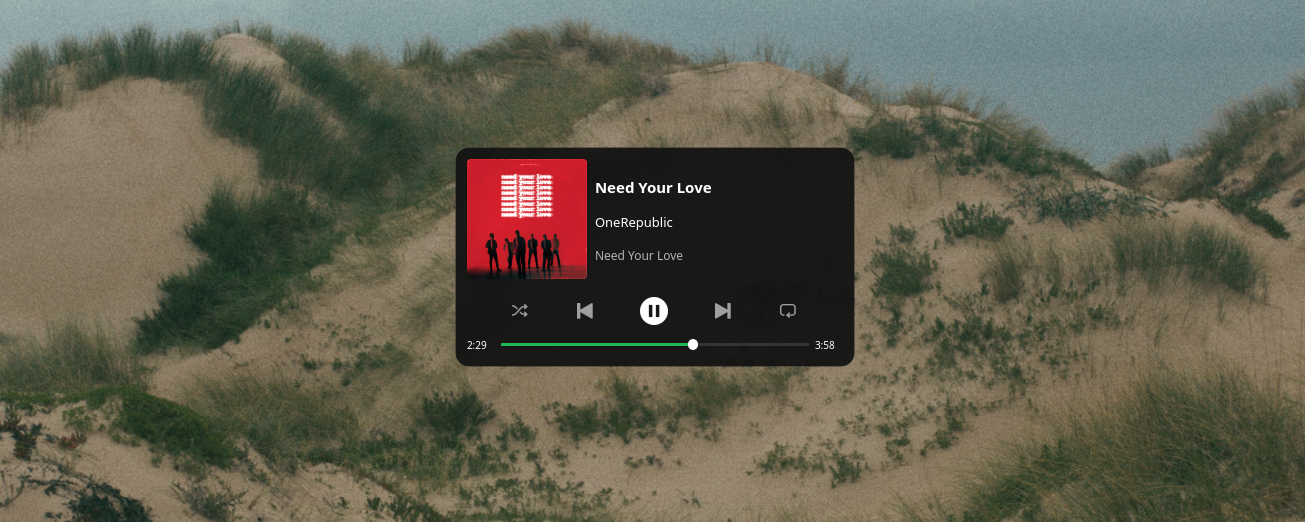
Click on the link below to see the DEMO. The link is not broken, PyPI does not support video previews.
https://cdn.hackclub.com/019de041-8640-7c8e-b268-1b31af582144/spotifyoverlaydemo.mp4
or watch demo on youtube: https://www.youtube.com/watch?v=lz-RwL30tBo
- Album art, track title, artist, and album name
- Playback controls (play/pause, next, previous, shuffle, repeat)
- Progress bar with seek support
- Search Spotify directly from the overlay
- Always on top overlay (KDE Plasma)
- Communicates with Spotify via D-Bus (MPRIS)
- System tray icon for toggle / quit
- Global keybind support with a Unix socket
- Linux with D-Bus
- Spotify desktop client (the offcial on of course)
- Python 3.10+
- KDE Plasma (for the always-on-top behavior; the overlay still runs but staying on top isn't guaranteed)
qdbus6available onPATH(comes with Qt 6 / KDE Plasma 6)
pip install spotify-overlay
spotify-overlay --install
The --install adds Spotify Overlay to your application launcher (creates a .desktop entry and installs the icon under ~/.local/share/) so you can launch it like a normal app!
git clone https://github.com/maker-lukas/spotify-overlay.git
cd spotify-overlay
pip install .
spotify-overlay --install- Make sure Spotify is running.
- Launch Spotify Overlay from your application menu, or run it from a terminal:
spotify-overlay
- The overlay window appears and a system tray icon is added.
The overlay is designed to be always running in the background you toggle it open/closed as needed via the tray icon or a global keybind (see below). Closing the overlay window only hides it; the app keeps running in the tray.
Once the app is running, look for the Spotify Overlay icon in your system tray:
- Left-click the tray icon → toggle the overlay (show/hide)
- Right-click the tray icon → menu with:
- Help - shows the in-app keybind cheat sheet
- Quit - fully exits the app (this is the only way to quit; closing the window just hides it)
Spotify Overlay listens on a Unix socket so any external command can toggle it. The socket lives at:
/run/user/<your-uid>/spotify-overlay
For most single-user systems your UID is 1000, so the path is /run/user/1000/spotify-overlay. You can confirm with id -u.
Any connection to this socket toggles the overlay. The simplest trigger command is:
nc -U /run/user/1000/spotify-overlay </dev/null(socat - UNIX-CONNECT:/run/user/1000/spotify-overlay works too.)
The exact menu names depend on your desktop environment / window manager, but the command you bind is always the same:
sh -c "nc -U /run/user/1000/spotify-overlay </dev/null"
(Replace 1000 with your UID from id -u if it differs.)
Common ways to bind it:
- KDE Plasma: System Settings → Shortcuts → Custom Shortcuts → Edit → New → Global Shortcut → Command/URL. Set a trigger key, paste the command above as the action.
- GNOME: Settings → Keyboard → Keyboard Shortcuts → Custom Shortcuts → +. Name it, paste the command, assign a key.
Make sure spotify-overlay is already running (autostarted, or launched once from the menu). The socket only exists while the app is running.
| Key | Action |
|---|---|
Space |
Play / Pause |
→ |
Next track |
← |
Previous track |
↑ |
Cycle repeat mode (None → Playlist → Track) |
↓ |
Toggle shuffle |
Ctrl+F or / |
Open the search bar |
Enter (in search) |
Submit search (opens results in Spotify) |
Esc |
Close search bar / hide overlay |
Clicking the track title, artist, or album opens the corresponding page or search in the Spotify desktop client.
Closing the overlay window (clicking outside it, pressing Esc, etc.) only hides it the app stays alive in the tray so the global keybind keeps working.
To fully quit, right click the tray icon and click Quit.