
An MCP server that allows Agents to interact with a running Roblox game client — execute code, inspect scripts, spy on remotes, and more.
Roblox Executor MCP includes a local web dashboard at:
http://localhost:16384/
Use it to see connected Roblox clients, inspect scripts, run tools, view server logs, configure semantic search, and index games for semantic script search.
- Code Execution — Run Lua code and fetch data from the game client.
- Script Inspection — Decompile scripts and search across all sources.
- Instance Search — CSS-like selectors and hierarchy trees.
- Remote Spy — Intercept, log, block, and ignore Remotes/Bindables via Cobalt.
- GUI Interaction — Click buttons and type into text boxes.
- Screenshot — Capture Roblox window screenshots (Windows only).
- Multi-Client — Connect multiple Roblox clients at once.
- Primary / Secondary — Multiple MCP instances auto-coordinate with automatic promotion. Supports remote relaying via
--baseurl. See Advanced.
- Node.js ≥ 18
- Bun ≥ 1.3 for the interactive OpenTUI harness installer
- A Roblox executor that supports
loadstring,request, and (preferably)WebSocket
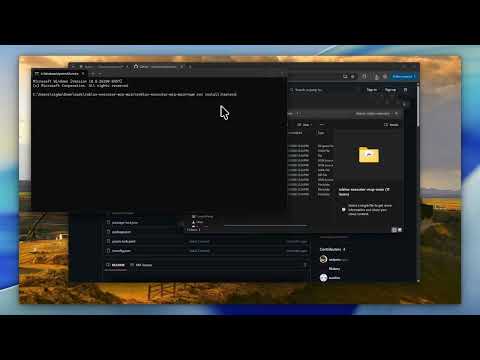
git clone https://github.com/notpoiu/roblox-executor-mcp.git
cd roblox-executor-mcpThe installer builds the server, lets you choose AI clients, writes supported MCP configs, and prints the Roblox loader script.
npm run install:harnessesThe picker is built with OpenTUI and runs through Bun. npm run install:harnesses installs Bun first if it is not already available. It shows detected local clients by default; if none are detected, it warns you to install a harness first. Press s in the picker or pass --show-all-harnesses to reveal every supported config target. If your terminal has trouble with the interactive picker, use the plain numbered prompt:
npm run install:harnesses -- --plainThe installer can also place the Roblox loader into a detected executor autoexec folder, such as MacSploit on macOS or supported Windows executor autoexec folders. Use the prompt, or run:
npm run getscript -- --autoexecIt can also help with:
- cross-machine setup on the same LAN
- copying the Roblox loader to your clipboard
- optional Ollama
embeddinggemmasetup for semantic indexing - pulling latest repo changes before install/build
To update an existing install later, run:
npm run updateThe update command can stop currently running MCP server processes, optionally pull latest changes, and always rebuilds the server.
If you prefer to configure a client yourself, use the setup guide for your client:
| Client | Guide |
|---|---|
| Cursor | Setup Guide |
| Claude Desktop | Setup Guide |
| Claude Code | Setup Guide |
| Codex CLI | Setup Guide |
| Windsurf | Setup Guide |
| Antigravity | Setup Guide |
The installer prints this for you. Put it in your executor or Auto Execute:
local bridgeUrl = getgenv().BridgeURL or "localhost:16384"
loadstring(game:HttpGet("http://" .. bridgeUrl .. "/script.luau"))()
Optional settings (set before the loadstring):
getgenv().BridgeURL = "10.0.0.4:16384"                  -- default: localhost:16384
getgenv().DisableWebSocket = true                        -- force HTTP polling
getgenv().DisableInitialScriptDecompMapping = true       -- skip initial decompilation
After the MCP server starts and Roblox connects, open the dashboard:
http://localhost:16384/
Have a suggestion or need help? Join the Discord server.
This server allows arbitrary code execution. Only use with AI clients you trust. Port
16384has no authentication — never expose it to the internet. For cross-machine setups, use a local network, VPN, or SSH tunnel. See Advanced for details.