-
The Abogen project is created and maintained by denizsafak. It is an amazing audiobook creator and ALL credit goes to the creator and the people that helped him create it. This is just a fork of the original project located here with a few added features I personally wanted. This is based off of the 1.2.5 version of the original repo.
-
This fork adds a feature for Voice Markers, allowing you to add markers in the text to have the script automatically switch voices whenever you want to add a little more flexibility to creating audiobooks so that you can have multiple voices easily. There are instructions below on how to do that.
-
This fork adds a Word Substitution feature that allows you to preprocess text before audio generation. You can replace words/phrases, convert ALL CAPS to lowercase, convert numerals to words, and fix nonstandard punctuation (like curly quotes) that can interfere with TTS pronunciation. All substitutions preserve chapter markers, voice markers, metadata tags, and timestamps.
-
The code was edited using AI (Claude) and although I've tested it and spot checked to make sure it's all accurate, it's AI so the code will not be as clean as if a human wrote it. Use at your own risk. I did update the README in case someone tries to use this fork. but again, the main repo is located here. If you have troubles with this one, I recommend you try that as it really is a great audiobook creator. I just added a few features I really wanted for my use case, but they may not even be things you need. So if that's the case, definitely use the main repo.
-
I've changed the install instructions and the Windows Install BAT file so that it will run correctly based on this fork and its changes. I use Windows, so nothing else is tested unfortunately, but in theory it should be fine.
Abogen is a powerful text-to-speech conversion tool that makes it easy to turn ePub, PDF, text, markdown, or subtitle files into high-quality audio with matching subtitles in seconds. Use it for audiobooks, voiceovers for Instagram, YouTube, TikTok, or any project that needs natural-sounding text-to-speech, using Kokoro-82M.
demo.mp4
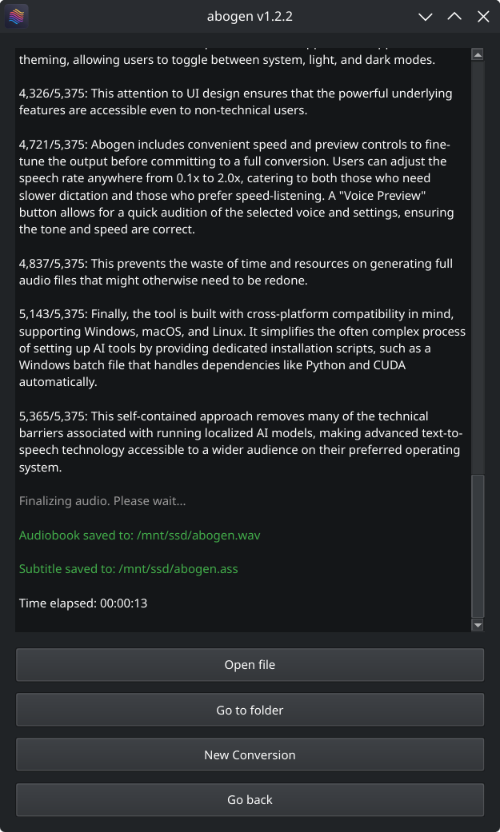
This demo was generated in just 5 seconds, producing ∼1 minute of audio with perfectly synced subtitles. To create a similar video, see the demo guide.

Go to espeak-ng latest release download and run the *.msi file.
- Download or clone this repository
- Extract the ZIP file (if downloaded as ZIP)
- Run
WINDOWS_INSTALL.batby double-clicking it
This method handles everything automatically - installing all dependencies including CUDA in a self-contained environment without requiring a separate Python installation. (You still need to install espeak-ng.)
Note
You don't need to install Python separately. The script will install Python automatically.
# Clone this repository first
git clone https://github.com/olandir/abogen-with-voicemarkers.git
cd abogen-with-voicemarkers

# For NVIDIA GPUs (CUDA 12.8) - Recommended
# Install PyTorch with CUDA support first
pip install torch==2.8.0+cu128 torchvision==0.23.0+cu128 torchaudio==2.8.0 --index-url https://download.pytorch.org/whl/cu128

# Install from local directory in editable mode
pip install -e .
Alternative: Install using pip with virtual environment (click to expand)
# Clone this repository
git clone https://github.com/olandir/abogen-with-voicemarkers.git
cd abogen-with-voicemarkers

# Create a virtual environment (optional but recommended)
python -m venv venv
venv\Scripts\activate

# For NVIDIA GPUs:
# We need to use an older version of PyTorch (2.8.0) until this issue is fixed: https://github.com/pytorch/pytorch/issues/166628
pip install torch==2.8.0+cu128 torchvision==0.23.0+cu128 torchaudio==2.8.0 --index-url https://download.pytorch.org/whl/cu128

# For AMD GPUs:
# Not supported yet, because ROCm is not available on Windows. Use Linux if you have AMD GPU.

# Install from local directory in editable mode
pip install -e .# Install espeak-ng
brew install espeak-ng
# Clone this repository
git clone https://github.com/olandir/abogen-with-voicemarkers.git
cd abogen-with-voicemarkers
# Create a virtual environment (recommended)
python3 -m venv venv
source venv/bin/activate
# Install from local directory in editable mode
pip3 install -e .
# For Silicon Mac (M1, M2 etc.)
# After installing abogen, we need to install Kokoro's development version which includes MPS support.
pip3 install git+https://github.com/hexgrad/kokoro.git# Install espeak-ng
sudo apt install espeak-ng # Ubuntu/Debian
sudo pacman -S espeak-ng # Arch Linux
sudo dnf install espeak-ng # Fedora
# Clone this repository
git clone https://github.com/olandir/abogen-with-voicemarkers.git
cd abogen-with-voicemarkers
# Create a virtual environment (recommended)
python3 -m venv venv
source venv/bin/activate
# Install from local directory in editable mode
pip3 install -e .
# For NVIDIA GPUs:
# Already supported, no need to install CUDA separately.
# For AMD GPUs:
# After installing abogen, we need to uninstall the existing torch package
pip3 uninstall torch
pip3 install --pre torch torchvision torchaudio --index-url https://download.pytorch.org/whl/nightly/rocm6.4See How to fix "CUDA GPU is not available. Using CPU" warning?
See How to fix "[WinError 1114] A dynamic link library (DLL) initialization routine failed" error?
Special thanks to @hg000125 for his contribution in #23. AMD GPU support is possible thanks to his work.
You can simply run this command to start Abogen:
abogenTip
If you installed Abogen using the Windows installer (WINDOWS_INSTALL.bat), It should have created a shortcut in the same folder, or your desktop. You can run it from there. If you lost the shortcut, Abogen is located in python_embedded/Scripts/abogen.exe. You can run it from there directly.
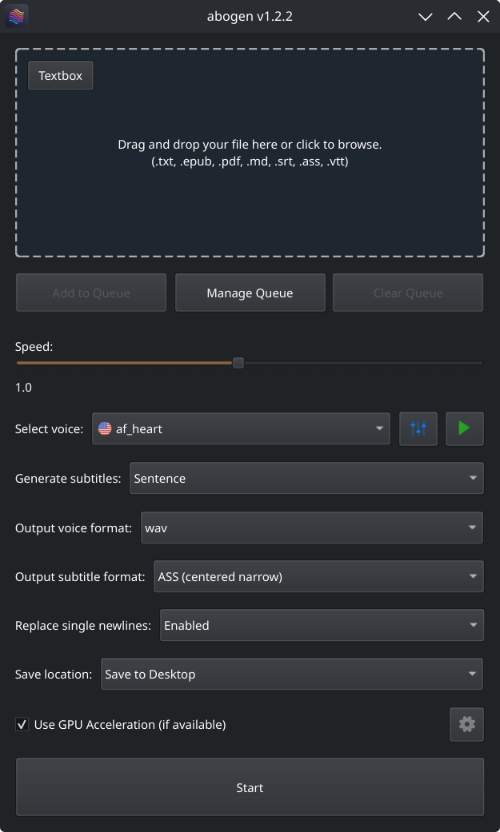
- Drag and drop any ePub, PDF, text, markdown, or subtitle file (or use the built-in text editor)
- Configure the settings:
- Set speech speed
- Select a voice (or create a custom voice using voice mixer)
- Select subtitle generation style (by sentence, word, etc.)
- Select output format
- Select where to save the output
- Hit Start
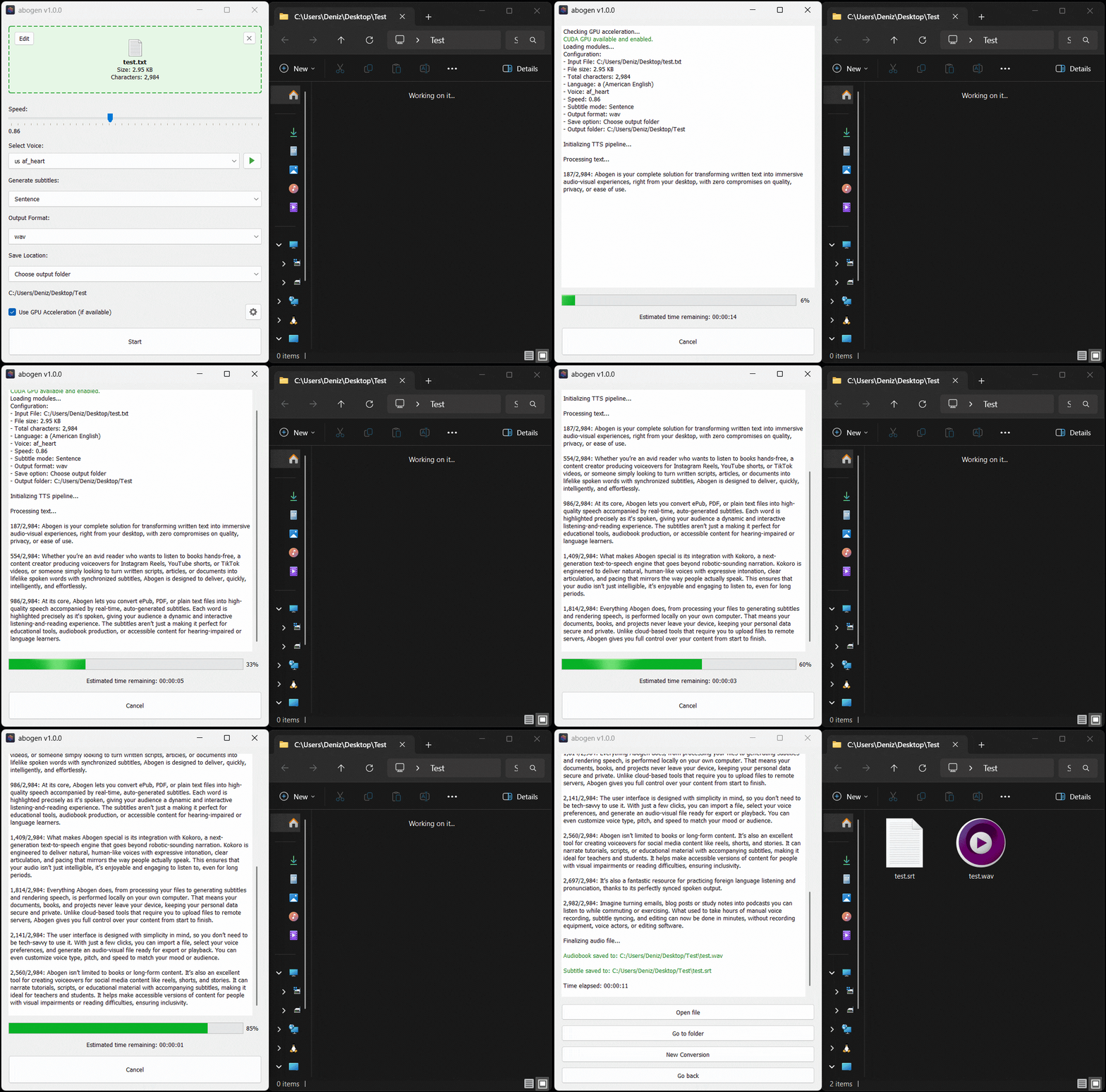
Here’s Abogen in action: in this demo, it processes ∼3,000 characters of text in just 11 seconds and turns it into 3 minutes and 28 seconds of audio, and I have a low-end RTX 2060 Mobile laptop GPU. Your results may vary depending on your hardware.
| Options | Description |
|---|---|
| Input Box | Drag and drop ePub, PDF, .TXT, .MD, .SRT, .ASS or .VTT files (or use built-in text editor) |
| Queue options | Add multiple files to a queue and process them in batch, with individual settings for each file. See Queue mode for more details. |
| Speed | Adjust speech rate from 0.1x to 2.0x |
| Select Voice | First letter of the language code (e.g., a for American English, b for British English, etc.), second letter is for m for male and f for female. |
| Word Substitutions | Enable text preprocessing to replace words, convert ALL CAPS to lowercase, convert numerals to words, and fix nonstandard punctuation. See Word Substitution for more details. |
| Voice mixer | Create custom voices by mixing different voice models with a profile system. See Voice Mixer for more details. |
| Voice preview | Listen to the selected voice before processing. |
| Generate subtitles | Disabled, Line, Sentence, Sentence + Comma, Sentence + Highlighting, 1 word, 2 words, 3 words, etc. (Represents the number of words in each subtitle entry) |
| Output voice format | .WAV, .FLAC, .MP3, .OPUS (best compression) and M4B (with chapters) |
| Output subtitle format | Configures the subtitle format as SRT (standard), ASS (wide), ASS (narrow), ASS (centered wide), or ASS (centered narrow). |
| Replace single newlines with spaces | Replaces single newlines with spaces in the text. This is useful for texts that have imaginary line breaks. |
| Save location | Save next to input file, Save to desktop, or Choose output folder |
Special thanks to @brianxiadong for adding markdown support in PR #75
Special thanks to @mleg for adding
Lineoption in subtitle generation in PR #94
| Book handler options | Description |
|---|---|
| Chapter Control | Select specific chapters from ePUBs or markdown files or chapters + pages from PDFs. |
| Save each chapter separately | Save each chapter in e-books as a separate audio file. |
| Create a merged version | Create a single audio file that combines all chapters. (If Save each chapter separately is disabled, this option will be the default behavior.) |
| Save in a project folder with metadata | Save the converted items in a project folder with available metadata files. |
| Menu options | Description |
|---|---|
| Theme | Change the application's theme using System, Light, or Dark options. |
| Configure max words per subtitle | Configures the maximum number of words per subtitle entry. |
| Configure silence between chapters | Configures the duration of silence between chapters (in seconds). |
| Configure max lines in log window | Configures the maximum number of lines to display in the log window. |
| Separate chapters audio format | Configures the audio format for separate chapters as wav, flac, mp3, or opus. |
| Create desktop shortcut | Creates a shortcut on your desktop for easy access. |
| Open config directory | Opens the directory where the configuration file is stored. |
| Open cache directory | Opens the cache directory where converted text files are stored. |
| Clear cache files | Deletes cache files created during the conversion or preview. |
| Use silent gaps between subtitles | Prevents unnecessary audio speed-up by letting speech continue into the silent gaps between subtitle etries. In short, it ignores the end times in subtitle entries and uses the silent space until the beginning of the next subtitle entry. When disabled, it speeds up the audio to fit the exact time interval specified in the subtitle. (for subtitle files). |
| Subtitle speed adjustment method | Choose how to speed up audio when needed: TTS Regeneration (better quality) re-generates the audio at a faster speed, while FFmpeg Time-stretch (better speed) quickly speeds up the generated audio. (for subtitle files). |
| Use spaCy for sentence segmentation | When this option is enabled, Abogen uses spaCy to detect sentence boundaries more accurately, instead of using punctuation marks (like periods, question marks, etc.) to split sentences, which could incorrectly cut off phrases like "Mr." or "Dr.". With spaCy, sentences are divided more accurately. For non-English text, spaCy runs before audio generation to create sentence chunks. For English text, spaCy runs during subtitle generation to improve timing and readability. spaCy is only used when subtitle mode is Sentence or Sentence + Comma. If you prefer the old punctuation splitting method, you can turn this option off. |
| Pre-download models and voices for offline use | Opens a window that displays the available models and voices. Click Download all button to download all required models and voices, allowing you to use Abogen completely offline without any internet connection. |
| Disable Kokoro's internet access | Prevents Kokoro from downloading models or voices from HuggingFace Hub, useful for offline use. |
| Reset to default settings | Resets all settings to their default values. |
Special thanks to @robmckinnon for adding Sentence + Highlighting feature in PR #65
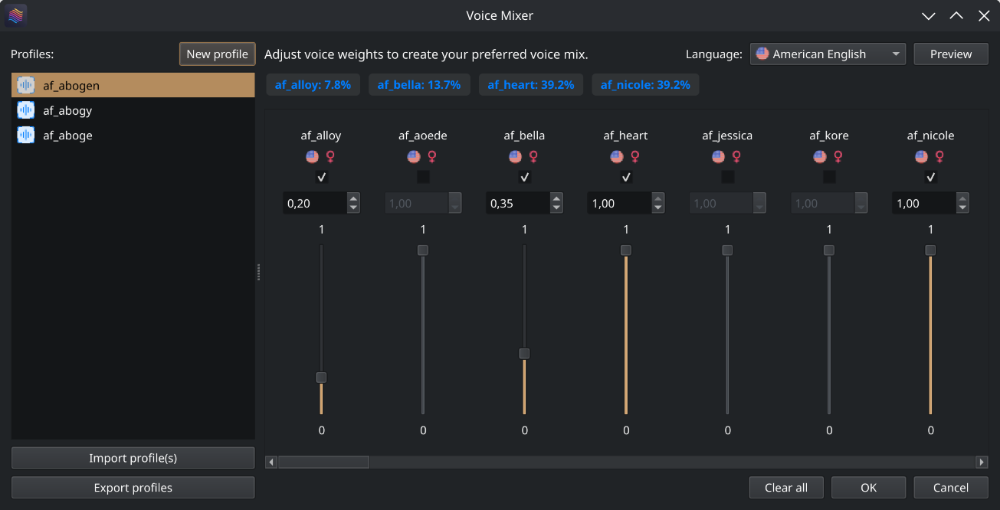
With voice mixer, you can create custom voices by mixing different voice models. You can adjust the weight of each voice and save your custom voice as a profile for future use. The voice mixer allows you to create unique and personalized voices.
Special thanks to @jborza for making this possible through his contributions in #5
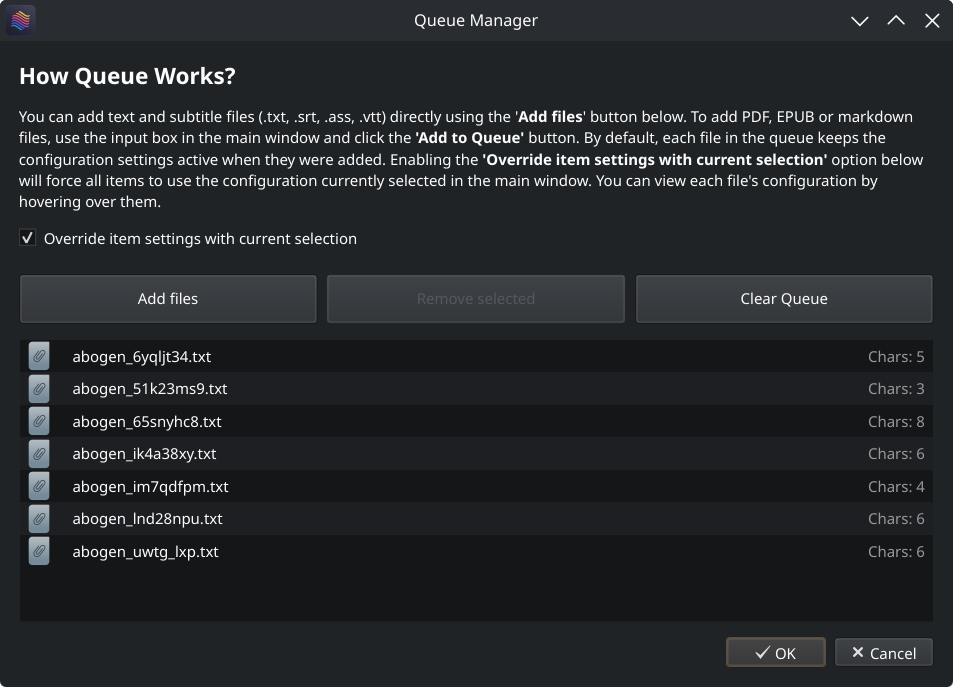
Abogen supports queue mode, allowing you to add multiple files to a processing queue. This is useful if you want to convert several files in one batch.
- You can add text files (
.txt) and subtitle files (.srt,.ass,.vtt) directly using the Add files button in the Queue Manager or by dragging and dropping them into the queue list. To add PDF, EPUB, or markdown files, use the input box in the main window and click the Add to Queue button. - Each file in the queue keeps the configuration settings that were active when it was added. Changing the main window configuration afterward does not affect files already in the queue.
- You can enable the Override item settings with current selection option to force all items in the queue to use the configuration currently selected in the main window, overriding their saved settings.
- You can view each file's configuration by hovering over them.
Abogen will process each item in the queue automatically, saving outputs as configured.
The Word Substitution feature allows you to preprocess text before audio generation, improving TTS pronunciation and consistency. This is especially useful for audiobooks where certain words, punctuation, or formatting can cause pronunciation issues.
- Locate the Word Substitutions dropdown (under "Select Voice" in the main window)
- Change from "Disabled" to "Enabled"
- Click the Settings button to configure your substitutions
The Word Substitutions Settings dialog provides the following options:
Word Substitution List:
- Enter word substitutions in the format:
Word|NewWord(one per line) - If nothing appears after the
|, the word will be completely removed - Examples:
gonna|going to- Replaces "gonna" with "going to"Mr.|Mister- Replaces "Mr." with "Mister"um|- Removes the word "um" entirely
Matching Options:
- Case-sensitive word matching (checkbox): By default, matching is case-insensitive, meaning "gonna", "Gonna", and "GONNA" all match. Enable this checkbox to require exact case matching.
- Whole word matching: Substitutions only match complete words. For example, "tree" will match "tree's" and "tree-shaped" but NOT "trees" or "treehouse".
Additional Preprocessing Options:
- Replace ALL CAPS with lowercase (checkbox): Converts words in ALL CAPS to lowercase, which helps TTS engines pronounce them correctly. Example: "HELLO" becomes "hello".
- Replace Numerals with Words (checkbox): Converts numbers to their word equivalents for better pronunciation. Example: "309" becomes "three hundred and nine". Requires the
num2wordsPython package. - Fix Nonstandard Punctuation (checkbox): Converts curly quotes and other Unicode punctuation characters to standard keyboard equivalents. This prevents pronunciation issues caused by nonstandard characters. Examples: curly quotes ("") become straight quotes ("), ellipsis (…) becomes three periods (...).
- Marker Preservation: Word substitutions never affect Chapter Markers (
<<CHAPTER_MARKER:...>>), Voice Markers (<<VOICE:...>>), Metadata Tags (<<METADATA_...>>), or timestamps (inHH:MM:SSformat). These are always preserved exactly as written. - Original Files: The original text files in your cache remain unchanged. Substitutions are applied in-memory only during audio generation.
- Queue Support: Each item in the queue can have its own word substitution settings. Use the "Override item settings with current selection" checkbox in the Queue Manager to apply the current substitution settings to all queued items.
- Processing Order: Substitutions are applied in this order: (1) Fix nonstandard punctuation, (2) Word substitutions, (3) ALL CAPS conversion, (4) Numeral conversion.
- Informal text: Replace contractions and slang with proper words (
gonna|going to,wanna|want to) - Abbreviations: Expand abbreviations for better pronunciation (
Mr.|Mister,Dr.|Doctor) - Character voices: Remove filler words for specific characters (
um|,uh|) - ALL CAPS emphasis: Convert shouted text to lowercase so TTS doesn't misinterpret it
- Foreign text: Replace numbers with word equivalents for more natural pronunciation
- eBook formatting: Fix curly quotes from imported documents that interfere with TTS
When you process ePUB, PDF or markdown files, Abogen converts them into text files stored in your cache directory. When you click "Edit," you're actually modifying these converted text files. In these text files, you'll notice tags that look like this:
<<CHAPTER_MARKER:Chapter Title>>
These are chapter markers. They are automatically added when you process ePUB, PDF or markdown files, based on the chapters you select. They serve an important purpose:
- Allow you to split the text into separate audio files for each chapter
- Save time by letting you reprocess only specific chapters if errors occur, rather than the entire file
You can manually add these markers to plain text files for the same benefits. Simply include them in your text like this:
<<CHAPTER_MARKER:Introduction>>
This is the beginning of my text...

<<CHAPTER_MARKER:Main Content>>
Here's another part...
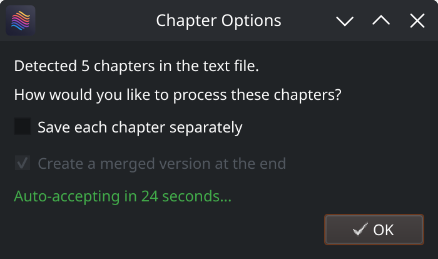
When you process the text file, Abogen will detect these markers automatically and ask if you want to save each chapter separately and create a merged version.
Voice markers allow you to dynamically switch between different TTS voices within your text, perfect for audiobooks with multiple characters or narrators. Voice changes persist across chapter boundaries, creating a seamless listening experience.
Add voice markers in your text like this:
This is narrated with the default voice.

<<VOICE:bf_alice>>
This section uses British female voice Alice.

<<VOICE:am_fenrir>>
Now we switch to American male voice Fenrir.

<<CHAPTER_MARKER:Chapter Two>>
This chapter continues with Fenrir - the voice persists!
- Voice persistence: Once a voice is set, it continues through subsequent chapters until you change it
- Invalid voice fallback: If a voice name is invalid, Abogen continues with the previous voice and logs a warning
- Case-insensitive: Voice names work in any case (
AM_FENRIR,am_fenrir,Am_Fenrir) - Voice formulas: Mix voices with formulas like
<<VOICE:af_heart*0.5 + am_echo*0.5>> - GUI support: Use the "Insert Voice Marker" button to quickly add markers
All 48 Kokoro voices are supported:
American English (a):
- Female:
af_alloy,af_aoede,af_bella,af_heart,af_jessica,af_kore,af_nicole,af_nova,af_river,af_sarah,af_sky - Male:
am_adam,am_echo,am_eric,am_fenrir,am_liam,am_michael,am_onyx,am_puck,am_santa
British English (b):
- Female:
bf_alice,bf_emma,bf_isabella,bf_lily - Male:
bm_daniel,bm_fable,bm_george,bm_lewis
Spanish (e):
- Female:
ef_dora - Male:
em_alex,em_santa
French (f):
- Female:
ff_siwis
Hindi (h):
- Female:
hf_alpha,hf_beta - Male:
hm_omega,hm_psi
Italian (i):
- Female:
if_sara - Male:
im_nicola
Japanese (j):
- Female:
jf_alpha,jf_gongitsune,jf_nezumi,jf_tebukuro - Male:
jm_kumo
Brazilian Portuguese (p):
- Female:
pf_dora - Male:
pm_alex,pm_santa
Mandarin Chinese (z):
- Female:
zf_xiaobei,zf_xiaoni,zf_xiaoxiao,zf_xiaoyi - Male:
zm_yunjian,zm_yunxi,zm_yunxia,zm_yunyang
For voice samples, see Kokoro's SAMPLES.md.
Similar to chapter markers, it is possible to add metadata tags for M4B files. This is useful for audiobook players that support metadata, allowing you to add information like title, author, year, etc. Abogen automatically adds these tags when you process ePUB, PDF or markdown files, but you can also add them manually to your text files. Add metadata tags at the beginning of your text file like this:
<<METADATA_TITLE:Title>>
<<METADATA_ARTIST:Author>>
<<METADATA_ALBUM:Album Title>>
<<METADATA_YEAR:Year>>
<<METADATA_ALBUM_ARTIST:Album Artist>>
<<METADATA_COMPOSER:Narrator>>
<<METADATA_GENRE:Audiobook>>
<<METADATA_COVER_PATH:path/to/cover.jpg>>
Note:
METADATA_COVER_PATHis used to embed a cover image into the generated M4B file. Abogen automatically extracts the cover from EPUB and PDF files and adds this tag for you.
Similar to converting subtitle files to audio, Abogen can automatically detect text files that contain timestamps in HH:MM:SS, HH:MM:SS,ms or HH:MM:SS.ms format. When timestamps are found inside your text file, Abogen will ask if you want to use them for audio timing. This is useful for creating timed narrations, scripts, or transcripts where you need exact control over when each segment is spoken.
Format your text file like this:
00:00:00
This is the first segment of text.

00:00:15
This is the second segment, starting at 15 seconds.

00:00:45
And this is the third segment, starting at 45 seconds.
Important notes:
- Timestamps must be in
HH:MM:SS,HH:MM:SS,msorHH:MM:SS.msformat (e.g.,00:05:30for 5 minutes 30 seconds, or00:05:30.500for 5 minutes 30.5 seconds) - Milliseconds are optional and provide precision up to 1/1000th of a second
- Text before the first timestamp (if any) will automatically start at
00:00:00 - When using timestamps, the subtitle generation mode setting is ignored
# 🇺🇸 'a' => American English, 🇬🇧 'b' => British English
# 🇪🇸 'e' => Spanish es
# 🇫🇷 'f' => French fr-fr
# 🇮🇳 'h' => Hindi hi
# 🇮🇹 'i' => Italian it
# 🇯🇵 'j' => Japanese: pip install misaki[ja]
# 🇧🇷 'p' => Brazilian Portuguese pt-br
# 🇨🇳 'z' => Mandarin Chinese: pip install misaki[zh]
For a complete list of supported languages and voices, refer to Kokoro's VOICES.md. To listen to sample audio outputs, see SAMPLES.md.
This project is available under the MIT License - see the LICENSE file for details. Kokoro is licensed under Apache-2.0 which allows commercial use, modification, distribution, and private use.
Note
Abogen supports subtitle generation for all languages. However, word-level subtitle modes (e.g., "1 word", "2 words", "3 words", etc.) are only available for English because Kokoro provides timestamp tokens only for English text. For non-English languages, Abogen uses a duration-based fallback that supports sentence-level and comma-based subtitle modes ("Line", "Sentence", "Sentence + Comma"). If you need word-level subtitles for other languages, please request that feature in the Kokoro project.
Tags: audiobook, kokoro, text-to-speech, TTS, audiobook generator, audiobooks, text to speech, audiobook maker, audiobook creator, audiobook generator, voice-synthesis, text to audio, text to audio converter, text to speech converter, text to speech generator, text to speech software, text to speech app, epub to audio, pdf to audio, markdown to audio, subtitle to audio, srt to audio, ass to audio, vtt to audio, webvtt to audio, content-creation, media-generation