This application allows to fire an IFTTT trigger when a CatGenie code 2 error occurs.
The app needs:
- An Audio Input (e.g. microphone) to monitor for beep sounds. Obviously, the sensor must be close enough to your CatGenie.
- A Maker Webhooks secret key
My CatGenie is dysfunctionnal. On each cleaning cycle, it fails 3 times with code 2 error. I think its solenoid valve is dead. Each time the code 2 error occurs, the CatGenie pauses the cycle and loudly beeps until you fix the issue. In my case, until the valve is changed, I just have to push the start/pause button for 7 seconds to resume the cycle. I have to repeat that 2 or 3 times per cycle. It can happen at night or when I am out of the house.
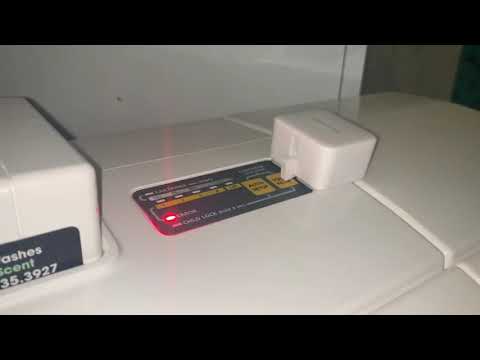
I wanted to automate the push button action. So I ordered a SwitchBot. A SwitchBot is just a remote button pusher. I discovered it was IFTTT compatible. The SwitchBot was attached to the CatGenie start/pause button.
This application acts as an IFTTT trigger.
I created an IFTTT applet which, on catgenie_error_2 webhook event, orders the SwitchBot to press the start/pause button for 7 seconds.
The Raspberry Pi running the application:

The SwitchBot installation:

The result in action (click on the picture below to watch the video):
Now I can sleep.
The application monitors the selected audio input for beep sounds.
When the code 2 error happens, the CatGenie emits
sequence of 2 beeps sound at a regular interval.
Something like: beep, beep, long pause, beep, beep, long pause, beep, beep, long pause, ...
We name burst the 2 subsequent beeps happening between long pauses.
The sequence is now: burst, long pause, burst, long pause, burst, ...
When burst long_pause burst sequence part is successfully identified, the application fires
Maker Webhooks with event catgenie_error_2.
Until there is no more beep sound, the event will be fired at a rate of at most one event every 2 minutes.
Configuration is read from ~/.catgenie/configuration.properties. You must create the file yourself.
# Required
# The regex that the monitored Audio Input name will have to match
# In this example, we are looking for the Logitech C920 Audio Input
audio-input-name-regex=.*C920.*
# Optional
# The secret key provided by https://ifttt.com/maker_webhooks
ifttt-webhook-key=secret
# Optional
# The switch bot bluetooth mac address if you want the application to control directly the bot
# instead of letting IFTTT deal with it. Useful when you don't want to rely on an internet
# connection or IFTTT/SwitchBot servers.
switch-bot-bluetooth-mac-address=E7:88:88:46:D3:F3Go to https://ifttt.com/maker_webhooks.
You should land on the following page:

Click on the button named Documentation.
You should land on a page showing your secret key.
You can play catgenie_error_2.wav to know :)
This app has been tested using:
- a Logitech C920 as audio input
- a Raspberry Pi 3 running Raspbian
- a CatGenie 120