Version 1.5: Character Panel
Help / Toolbox / Character panel
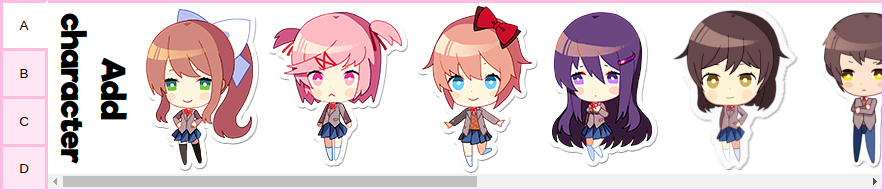
This panel allows you manipulate characters that have already been added to scene. The panel is shown once a character is selected.
Here, you can customize the look of the character. For each of these options, the < button selects the previous and the > the next option. Clicking the button in middle brings you to a list with preview image for each possible selection. For example, for heads, this list could look like this:

Clicking the back button in these lists brings you back to the character panel.
Each of the following options may or may not be visible, depending on context:
Here, you can select different outfits, eye colors and hairstyles, for the characters that have them. That list view is slightly different than for the others. It looks like this:

Selects the body position of the character. Depending on the character other features like alternate outfits and eye colors are represented as different poses.
If a character only has one pose, this selector is not shown.
Selects the head graphic of the character. This means usually different facial expressions and sometimes head positions.
If a pose only supports a single or no heads, this selector is not shown.
These are options for the current pose.
This is most common variant of sub-poses. They allow you to select different positions for the left and right arm of the character. (From your perspective)
Some poses just have more general variants then left and right arm positions. You can use this option to move between them.
This determines if the characters will be positioned in predefined, game accurate character slots or be freely moveable across the screen. This doesn't just define the behavior of the rest of the section, but also the drag-and-drop behavior.
These are positions that the actual game uses to positions it's characters. The available slots are, from left to right: 4-1, 3-1, 2-1, 4-2, center, 4-3, 2-2, 3-3, 4-4.
These the first number represents the number of characters in the scene, the second the position within that group. So 4-3 is the position of the third character in a group of four. 2-1 is the position of the first character in a group of two. There is no 3-2, as it's the same as center.
The arrow buttons will move the character to the next position left or right of the current one.
The combo box in the middle of the arrow buttons allows you to directly select the position you want, as well as see the position the character currently has.
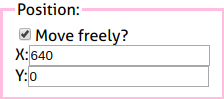
In this mode, you can freely decide the position of the character.
Note: The size of the image in total 1280 in width and 720 in height.
The horizontal position of the character.
The vertical position of the character. Note that the character graphics do not contain the full body and cut off somewhere at the upper legs.
These buttons allow you to move the character ahead or behind other objects.
Note: Characters that are in front of the textbox will always be in front of objects that are not, regardless of what you do with these buttons.
Moves the character to be behind all other objects.
Moves the character to be behind the next lower object.
Moves the character to be ahead of the next higher object.
Moves the character to be ahead all other objects.
If checked the character will be shown in front of the textbox. Also including all objects behind the textbox.
A value from 0 (fully transparent) to 100 (fully opaque).
Doubles the size of the character, making it look like they are closer to the screen.
Flips the character horizontally.
Removes the character from the scene.